Building a Google Sheets client portal sounds straightforward until you try to make sure Client A can't see Client B's data. Google Sheets has no row-level permissions, no real audit trail, and no native way to lock down access without splitting everything into separate files or writing fragile filter formulas. Let's break down how to build a basic portal that works, what breaks as you scale, and when it's time to switch to something purpose-built for client access.
TLDR:
- Google Sheets lacks row-level permissions; clients with a shared link can see all data.
- Performance degrades before hitting the 10 million cell cap; slowdowns start around 100,000 rows.
- You can publish a single tab with
widget=falseandchrome=falseparameters for cleaner embeds. - Portal builders like Softr add authentication and per-client filtering but inherit Sheet row limits.
- Stacker connects to your existing Google Sheet and adds role-based access without formula workarounds.
What Is a Google Sheets Client Portal?
A Google Sheets client portal is a structured workspace built inside Google Sheets that gives clients controlled access to their own data, project updates, invoices, or deliverables. Instead of emailing spreadsheets back and forth, you share a single source of truth where clients can log in and see exactly what's relevant to them.
The keyword here is "controlled." A well-built portal doesn't expose your entire workbook. It shows each client only their information, filtered by their account or project.
At its core, a Google Sheets client portal typically includes:
- A data layer where your records live, organized by client ID or name
- A view that filters down to only the relevant rows for whoever is accessing it
- Some form of access control, whether that's a shared link, tab permissions, or a connected front end
To make this concrete: an agency might build a portal where each client logs in to see their campaign reports, active deliverables, and invoice history. A consulting firm might give clients a filtered view of their project milestones and document uploads. A home services company might show each homeowner their job status, scheduled dates, and photo documentation. In every case, the spreadsheet holds the underlying data, and the portal is the organized face clients actually see.
It's a practical starting point for teams that already manage client data in spreadsheets and want to offer a more organized experience without rebuilding their entire workflow from scratch.
Setting Up a Basic Google Sheets Client Portal
The simplest path starts with Google's built-in publish feature. Open your spreadsheet, go to File, then Share, then Publish to web. You can publish the entire document or a single tab. Publishing just the relevant tab keeps clients from seeing everything else in your workbook.
Once published, Google generates both a shareable link and an embed code. For a portal embedded in a website or internal page, grab the embed code and add two parameters to the URL inside the iframe src: widget=false removes the outer frame and chrome=false strips the toolbar. The result looks noticeably cleaner and far less like a raw spreadsheet dropped into a page.
One practical note: changes made to the source sheet are automatically reflected in the embedded view, though Google's cache typically takes up to 5 minutes before viewers see the updated data.
Managing Permissions and Access Control
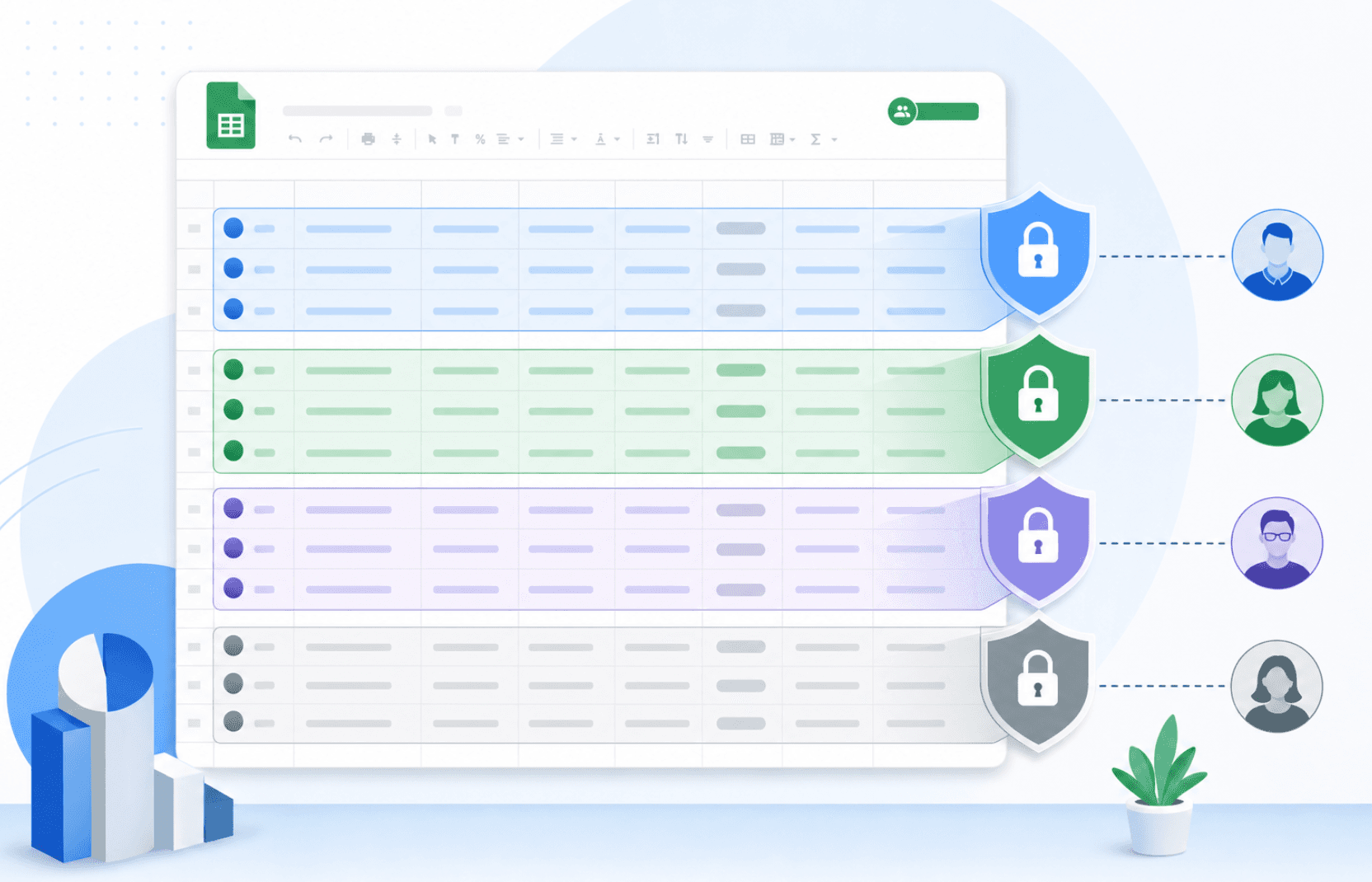
Google Sheets has no built-in access control. Every collaborator you invite gets the same view of the same data, which creates real problems the moment a client should only see their own files, invoices, or project updates.
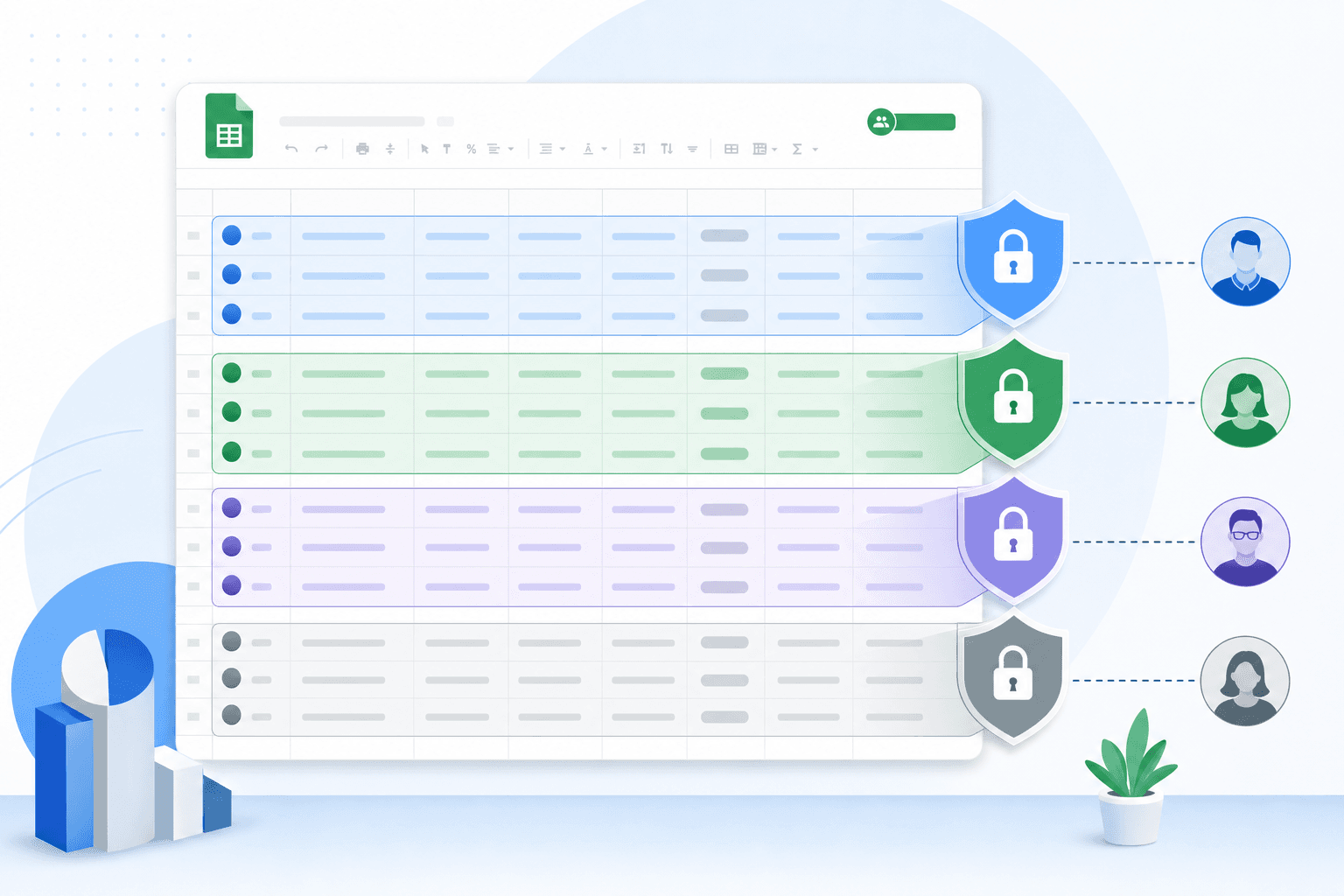
Here's how teams typically work around this:
- Row-level filtering using QUERY or FILTER formulas scoped to a client identifier, so each client tab or view only surfaces their rows. This requires careful formula management and breaks easily if the sheet structure changes.
- Separate tabs per client, shared individually via Google Drive. This works at a small scale but becomes unmanageable past a handful of clients.
- Protected ranges to lock down cells or columns, preventing edits without hiding data from view entirely.
None of these approaches gives you true role-based permissions. A client who receives a shared link can often move beyond their intended view, and there's no audit trail tracking who accessed what.
When a portal grows beyond a few clients, this is usually when teams start looking at purpose-built tools. Stacker connects to your existing Google Sheet and lets you set row-level permissions per user, so each client logs in and sees only their own data, with no formula workarounds required.
When Google Sheets Hits Its Limits as a Portal
Google Sheets enforces a hard cap of 10 million cells per spreadsheet, but the real issue is that performance starts degrading long before you reach it. Sheets with large row counts (often around 100,000 rows or more) can slow noticeably, and because the app runs in the browser instead of on server-side infrastructure, heavy workbooks can freeze or crash mid-session.
Splitting data across multiple files to stay under those thresholds creates its own mess: cross-sheet formulas break, references go stale, and there's no longer a clean source of truth.
The multi-client isolation problem compounds this. Every embedded sheet displays the same data to anyone who has the link. Building true per-client views requires manually maintaining separate sheets per client, which breaks down after a handful of accounts.
Security Concerns with Google Sheets Portals
Google Sheets was built for data analysis, not access control. When you start sharing spreadsheets with clients, you run into security gaps that are hard to close without fundamentally changing how the file works.
Here are the most common risks to know about:
- Sharing a Google Sheet with a client typically gives them access to the entire file. Even with tab-hiding tricks, a motivated user can often unhide sheets or access data through formulas that reference hidden ranges.
- There is no true row-level permission system. If two clients are in the same sheet, keeping their data separate requires manual workarounds that are easy to break.
- Version history is visible to anyone with edit access, so clients can see every change made to the file, including deleted or corrected data.
- Google Sheets has no built-in audit log for client activity. You cannot see who viewed what, when, or whether sensitive data was copied.
These gaps matter more as your client list grows. A one-sheet setup for two clients is manageable. Scaled to 20 clients with sensitive project data, the exposure becomes harder to defend against.
Using Portal Builders with Google Sheets as the Backend
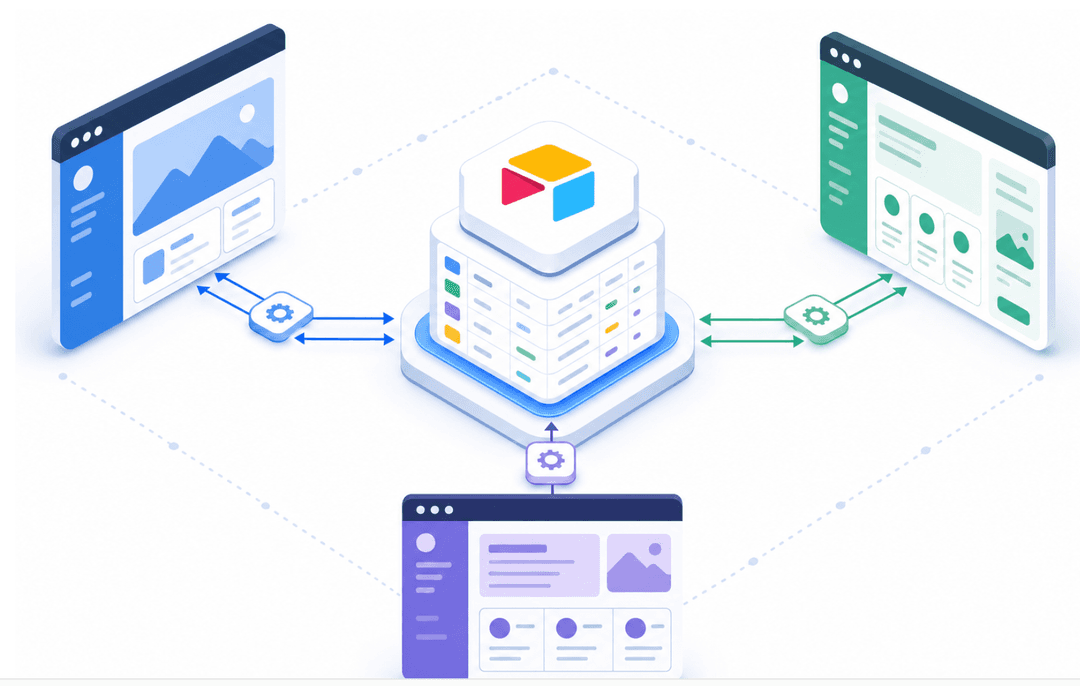
Portal builders like Softr sit on top of your Google Sheet and handle the things Sheets can't natively provide: user authentication, per-client data filtering, polished interfaces, and role-based permissions. Your spreadsheet remains the data source; the builder provides a proper front end, so clients see a login screen instead of a shared link.
The appeal is real. Clients get isolated views of their own data without formula gymnastics, and the interface looks intentional instead of cobbled together. For teams that want to keep their existing spreadsheet workflow intact, this hybrid approach is a practical step up without a full migration.
The underlying constraints follow the data, though. Cell limits and row-count performance issues don't disappear just because a portal layer sits in front of them. Sync between the sheet and the portal also adds a dependency, and when that sync lags or breaks, the client-facing view goes stale.
| Approach | Access Control Method | Best Fit | Key Limitation |
|---|---|---|---|
| Native Google Sheets (published tabs) | Tab-level sharing via Google Drive links with protected ranges to lock cells | Teams with a handful of clients who need view-only access to non-sensitive data | Anyone with the link can see all data; no row-level permissions or audit trail |
| Formula-based filtering (QUERY or FILTER) | Client-specific tabs with formulas that surface only relevant rows per identifier | Small client lists where manual formula management per tab is manageable | Formulas break easily when sheet structure changes and offer no true permission enforcement |
| Portal builders (Softr, similar tools) | Application-layer authentication and role-based filtering on top of your existing Sheet | Teams wanting branded login screens and per-client views without migrating off spreadsheets | Inherits the 10 million cell cap and performance degradation around 100,000 rows from the underlying Sheet |
| Dedicated portal apps (Stacker) | Direct connection to Sheet data with app-enforced row-level permissions per user role | Growing client lists needing audit logs, branded domains, and compliance-ready access control | Requires setup as a separate web app instead of working directly in the spreadsheet interface |
When to Upgrade Beyond Google Sheets Entirely
Google Sheets works well as a starting point, but there are clear signs it has reached its limits as a client portal.
Consider moving to a dedicated tool when you run into any of these situations:
- Clients are accidentally editing or deleting data they shouldn't be able to access, and row-level permissions in Sheets aren't solving the problem.
- Your portal has grown to dozens of clients, and managing individual sharing settings has become a weekly time sink.
- You need clients to submit forms, upload files, or trigger workflows, and every workaround you've built feels fragile.
- Your team wants a branded experience with a custom domain and logo, not a URL that says "docs.google.com."
- Audit trails, access logs, or compliance requirements have come up, and Sheets offers no reliable way to track who changed what.
When those friction points appear together, a purpose-built app builder like Stacker lets you connect directly to your existing Google Sheets data and wrap it in a proper web app with role-based permissions, branded views, and client-facing forms, without rebuilding your data from scratch.
Build a Client Portal That Scales with Stacker
Google Sheets gets you started, but it has a ceiling. Once your client list grows, permissions get messy, and sharing a live spreadsheet stops feeling professional.
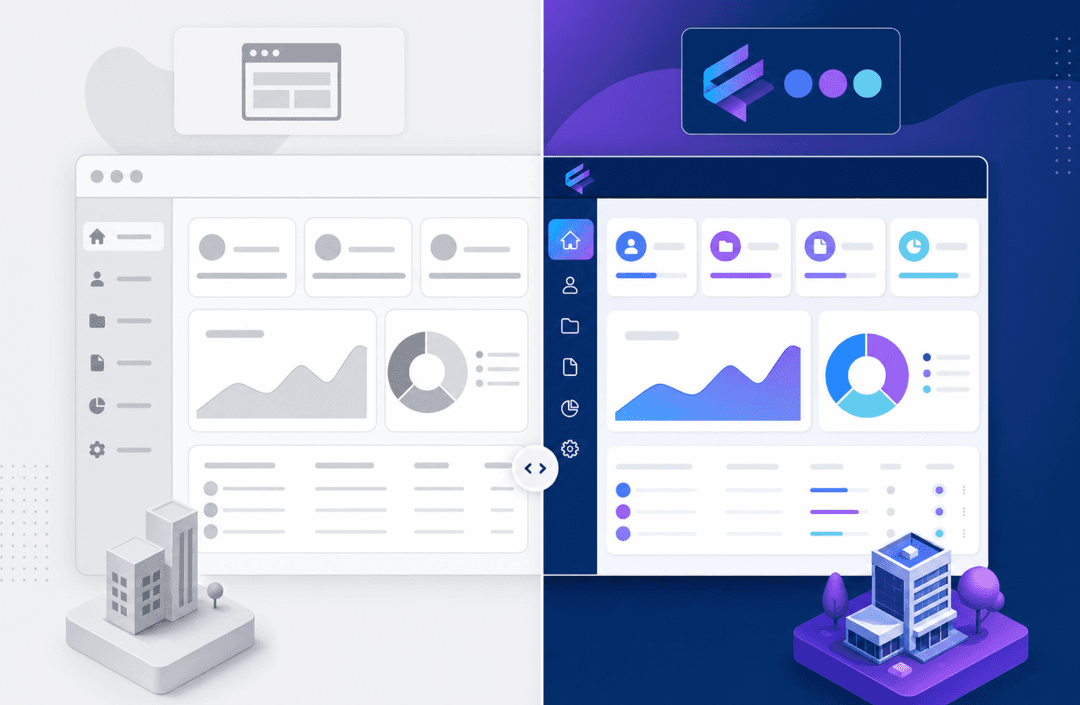
Stacker connects directly to your Google Sheets data and turns it into a proper web app your clients can log in to. You keep your spreadsheet as the data source, and Stacker wraps it in a clean, permissioned interface built for external users.
What You Can Build With Stacker
- Role-based access so each client only sees their own records, not everyone else's data sitting in the same sheet, as seen in the Solar Energy Partners customer story.
- A branded portal with your logo and colors, not a raw spreadsheet URL.
- Forms, dashboards, and file uploads that automatically write data back to your sheet.
When your process outgrows Google Sheets alone, Stacker gives you a direct path forward without rebuilding from scratch.
Final Thoughts on Building a Client Portal in Google Sheets
Google Sheets gets you moving quickly, especially when your workflow already lives in spreadsheets. But the permission gaps and performance ceiling become real problems the moment your client list grows past a few accounts. If you're patching together access control with formulas and hitting that ceiling, book a demo to see how Stacker wraps your existing data in a proper client-facing app.
FAQ
Can I build a Google Sheets client portal without coding?
Yes. You can start with Google's built-in publish-to-web feature to create a basic embedded view, though this approach lacks true access control and per-client data filtering. For a more polished portal with proper permissions, portal builders like Stacker connect to your existing Google Sheet and add authentication, role-based access, and branded interfaces without requiring any code.
Google Sheets client portal vs building a custom app from scratch?
Google Sheets portals are faster to set up and work well when your data already lives in spreadsheets, but you'll hit limits on permissions, performance beyond 100,000 rows, and client isolation. Custom apps give you full control but require developers and ongoing maintenance. Purpose-built portal platforms like Stacker split the difference: they connect to your existing Google Sheets data and wrap it in a proper web app with permissions and branding, without the technical overhead of custom development.
How do I control what each client sees in a Google Sheets portal?
Google Sheets has no native row-level permissions, so most teams use workarounds: QUERY or FILTER formulas to show only relevant rows per client, separate tabs shared individually via Drive, or protected ranges to lock cells. These methods are fragile and break easily as your sheet grows. When you need true per-client data isolation at scale, a portal builder that sits on top of your Sheet and enforces permissions at the application layer becomes necessary.
When should I move from Google Sheets to a dedicated portal tool?
These friction points indicate that your portal has outgrown spreadsheet infrastructure and needs proper access controls and client-facing features.