Client emails pile up asking for project updates, file downloads, and invoice approvals. Your team spends hours answering the same status questions instead of doing the actual work, and important documents get buried in email threads no one can find later. You're comparing client portal software for your small business, scanning best client portal software Reddit threads for unfiltered opinions, and wondering whether you need something custom or if free client portal software can cover what you're trying to do. Maybe you've looked at SuiteDash, set up a Notion client portal, or downloaded a client portal dashboard template that didn't quite fit. The challenge isn't finding options. It's figuring out which client portal examples actually reflect what works when clients need to check project status, download files, or approve invoices without sending another email. The best client portal for freelancers looks different from client portal software for consultants, and a custom client portal app serves different needs than a basic login page tied to a shared folder. The examples below show what separates portals clients use from ones that sit empty, covering everything from custom client portal templates to web portal examples that work across industries in 2026.
TLDR:
- Client portals replace email threads and status-update calls by giving clients one login to view projects, download files, and communicate with your team
- Self-service portals save up to $11 per call avoided; businesses handling 3,000 calls weekly can cut costs by $1.7M annually
- Look for role-based access, document management, in-portal messaging, white-label branding, and two-way sync with your existing tools
- Free tiers work for solo freelancers with a few clients; paid plans add custom domains, branding removal, and higher storage limits
- Stacker builds custom client portals on top of your Airtable, Google Sheets, or SQL data without requiring any code
What Makes a Client Portal Great in 2026
Great client portals share a few qualities that separate the ones clients actually use from the ones they ignore.
The best ones give clients a single place for all project information, without requiring a phone call or email to track something down. Access controls matter too: clients should only see what belongs to them, and your team should be able to update information without touching a developer.
Real-time data is now expected. A portal showing week-old numbers erodes trust fast.
Core Features That Define Portal Quality
Before comparing specific examples, it helps to know which features separate a capable portal from a glorified file-sharing link.
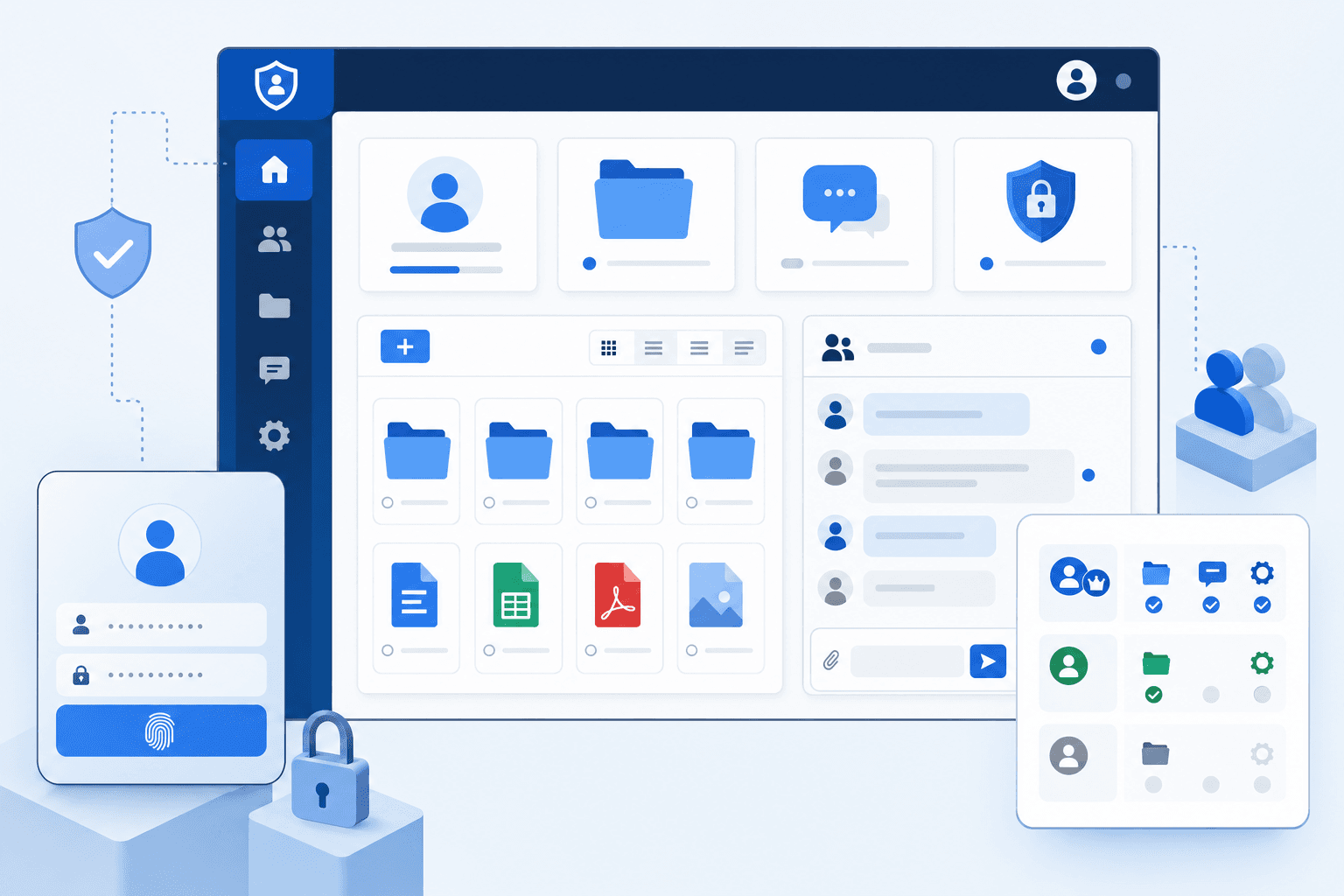
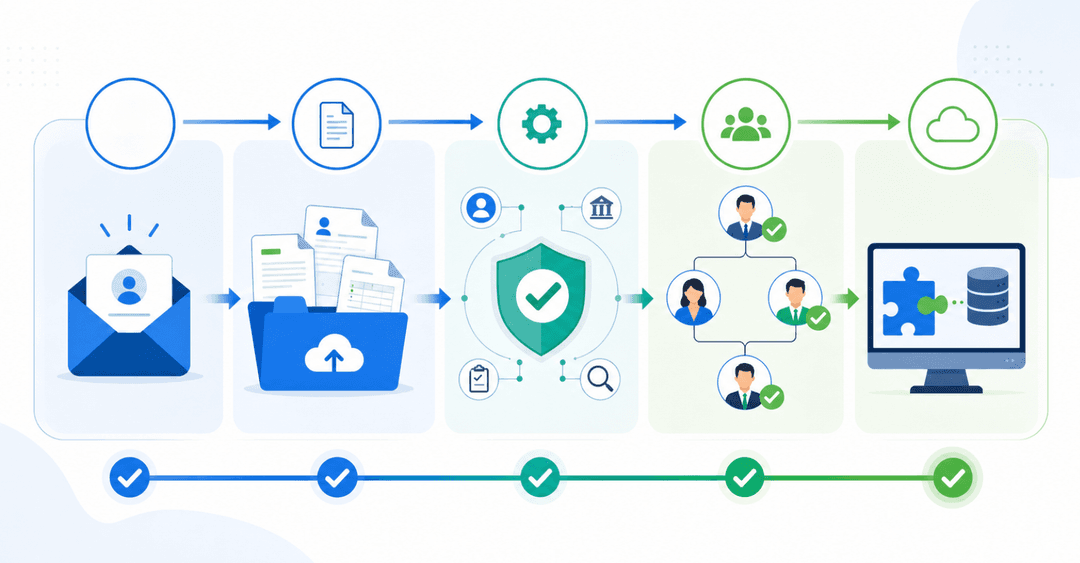
- Secure login and role-based access: each client authenticates and sees only their own records, not anyone else's
- Document management: file uploads, downloads, and version tracking without routing attachments through email
- In-portal communication: comments or messages tied to specific projects or records, keeping context out of a shared inbox
- Branding controls: your logo, colors, and custom domain so the portal reflects your business
- Integrations: two-way sync with the tools your team already relies on, so data never gets entered twice
A portal missing any one of these usually creates workarounds that defeat the purpose of having one at all.
Security and Compliance Features in Action
Security requirements differ sharply by industry. A marketing agency and a law firm both need client portals, but what "secure enough" means to each varies quite a bit.
For compliance-sensitive industries, the bar goes beyond password-protecting a folder:
- Data encrypted in transit and at rest
- Audit logs showing who accessed which records and when
- Multi-factor authentication for portals holding financial or legal files
- Compliance certifications like SOC 2, HIPAA, or GDPR that clients can actually verify
Legal, healthcare, and financial services teams often face client security questions before going live. Being able to point to specific certifications tends to resolve those questions faster than any feature walkthrough.
Client Portal Examples by Industry
Real-world client portals vary widely depending on what clients actually need to see, do, and track. Here are a few common industry patterns worth knowing.
Professional Services and Consulting
Consultants typically build portals around project visibility: status updates, deliverable timelines, and shared documents. Clients log in to review proposals, approve work, or download reports without sending a single email.
Agencies and Freelancers
Creative agencies often include file sharing, feedback rounds, and invoice history in one view, cutting down on the back-and-forth that slows approvals.
Financial Services
Accountants and financial advisors use portals to share statements and documents securely, replacing email threads that carry sensitive data.
Healthcare and Legal
These industries lean on portals for intake forms, case status tracking, and secure document exchange, where compliance matters as much as convenience.
Project Management Portal Examples
Project management portals solve one specific problem: clients don't know what's happening unless someone manually tells them. A good portal changes that entirely.
What these portals typically show
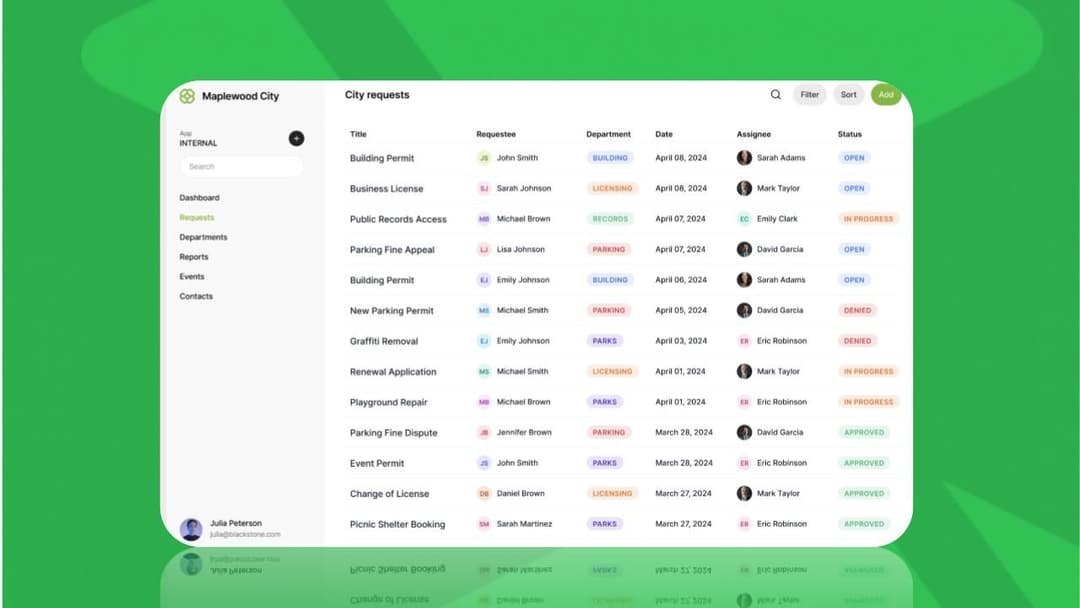
- A live project timeline or task board so clients can check progress without sending a "just checking in" email
- Milestone tracking tied to deliverables, so both sides agree on what done looks like
- A shared document space where briefs, approvals, and files live in one place instead of scattered across email threads
- A messaging or comment thread scoped to the project, keeping feedback organized and traceable
Customer Service Portal Examples
Customer service portals work differently from project portals. Their job is self-service: clients resolve issues without waiting for a support rep. 81% of customers want self-service options, which is why these portals are becoming harder to skip.
The best ones include ticket submission with status tracking, a searchable knowledge base for common questions, and account details like billing history accessible around the clock. When clients can find answers themselves, inbound support volume drops without satisfaction taking a hit.
White-Label and Branded Portal Examples
For agencies and consultants, the portal is part of the service itself. A client logging into a generic tool under a third-party brand notices immediately. White-label portals fix that.
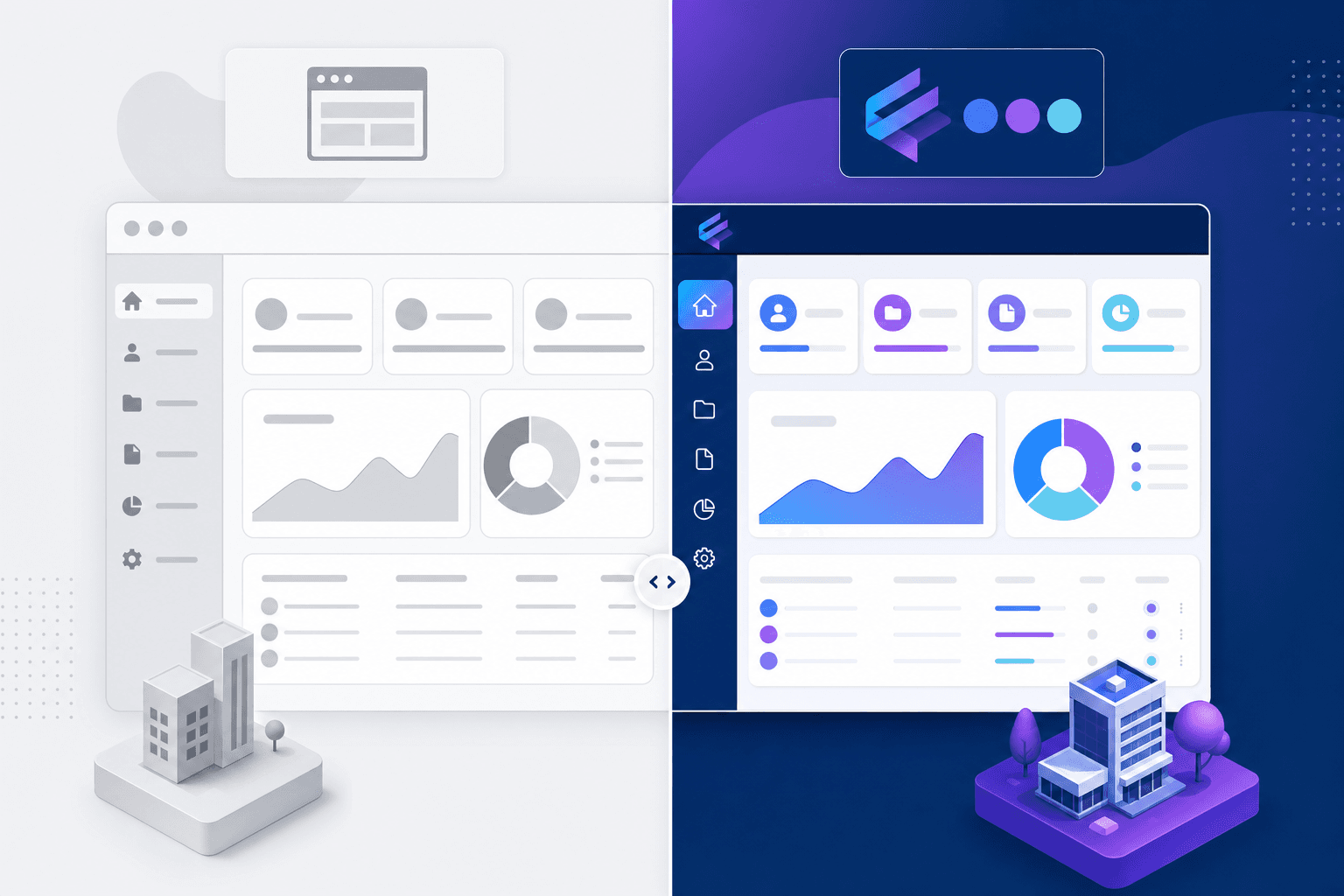
White-label portals fix that. Custom domains, branded login pages, logo placement, and color-matched interfaces mean clients see your brand at every point of contact. Professional services firms and freelancers use this kind of consistency to signal that the client experience was deliberately designed, not assembled from off-the-shelf defaults.
What branded portals typically include
A few features separate a truly white-labeled portal from one that just slaps a logo on a sidebar:
- Custom domain access so clients visit yourfirm.com/portal, not a third-party subdomain that breaks the illusion of a unified service.
- Branded login screens with your logo, colors, and typography rather than the vendor's own sign-in page.
- Role-scoped views that show each client only their own data, invoices, files, or project status, keeping the experience clean and relevant.
- Removal of vendor branding entirely, including footer links, "powered by" badges, and default email notifications that reference the underlying tool.
Stacker lets you build this kind of portal on top of your existing data sources without writing code, giving you full control over the visual identity and the data each client sees when they log in.
Portal vs. File Transfer Tool: Key Differences
A client portal gives clients a dedicated, secure space to log in, view their project status, share files, and communicate with your team. A file transfer tool, like Dropbox or WeTransfer, only moves files from one place to another.
The practical difference matters more than it sounds. With a file transfer tool, clients have no visibility into what's happening on their account. With a portal, they can check progress, approve deliverables, and ask questions without sending another email. Choosing the right portal software makes this experience possible.
Small Business Portal Examples
Small businesses often juggle client communication across email threads, shared drives, and spreadsheets. A dedicated client portal pulls that chaos into one place without requiring a full IT team to build or maintain it.
Here are a few common ways small businesses put client portals to work:
- A bookkeeping firm gives each client a login to view invoices, upload receipts, and check the status of their filing without emailing back and forth.
- A freelance web designer shares project milestones, collects feedback, and sends contracts through a single portal so nothing gets buried in inboxes.
- A small marketing agency lets clients approve content drafts, track campaign reports, and submit new requests all in one place.
Best small business portal software tends to share a few traits: low setup time, simple permissions so clients only see what's theirs, and a clean enough interface that clients actually log in.
Free vs. Paid Options
Free client portal software can cover the basics well, and several tools offer free tiers worth testing before committing to a paid plan. The tradeoff is usually customization and branding. Free tiers often cap the number of clients, remove white-labeling, or limit file storage. For a solo freelancer or a business with a handful of active clients, that's a reasonable starting point. As the client roster grows, the gaps in a free plan become more noticeable.
Tools like SuiteDash and Notion are frequently discussed in small business circles, including threads on Reddit, for their flexibility at lower price points. Notion client portals work well when your workflow is document-heavy and your clients are comfortable with a slightly more freeform interface. SuiteDash suits teams that want more built-in CRM and billing features packaged with the portal.
Enterprise Portal Examples at Scale
Enterprise portals operate at a different order of magnitude. Instead of ten clients with logins, you're managing hundreds or thousands, each with scoped access across different business units or regional teams.
A few things change at that scale:
- Tiered permissions that mirror org hierarchies, so regional managers see their accounts while global admins see across all of them
- ERP and CRM integrations that keep portal data in sync with systems of record rather than creating a separate source of truth
- Audit logs and governance controls that satisfy compliance teams without requiring manual tracking per user
- Automated access provisioning so new clients or accounts inherit the right permissions on setup, not after a support ticket gets resolved
The architectural question also changes. A small business portal can tolerate some manual configuration. An enterprise one needs rules that hold when the org chart changes, a major client adds five new contacts, or a compliance audit asks who saw what and when.
Portal ROI and Business Impact Examples
The numbers behind portal ROI are more concrete than most teams expect. Web self-service can cut costs by as much as $11 per call avoided, and a business fielding 3,000 calls per week could save roughly $1.7 million per year by shifting even a portion of those interactions to a self-service portal.
| Impact Area | Example Outcome |
|---|---|
| Cost per deflected call | Up to $11 saved per interaction |
| Annual savings potential | ~$1.7M/year at 3,000 calls/week |
| Team hours reclaimed | Fewer status-update requests, more time on delivery |
| Client satisfaction | Improves when answers are available without waiting |
When making an internal business case for a portal, these figures give finance teams something concrete to review beyond a general promise of saved time.
Common Portal Implementation Patterns
Across successful portal deployments, a few patterns show up consistently enough to be worth following.
Start with one client segment instead of rolling out to everyone at once. Picking a small, forgiving group first lets you work out permission gaps and confusing UI flows before they become support tickets from your biggest accounts.
Connect to your existing data sources before adding new features. Teams that try to migrate everything into a new system first often stall before a single client logs in. Portals built on top of Airtable, Google Sheets, or a CRM already in use tend to go live faster and stick around longer.
Add features in phases. Clients who log in to one simple, reliable view are far more likely to adopt the portal than ones who encounter a dashboard loaded with half-finished functionality on day one.
Onboarding matters more than most teams expect. A short walkthrough email or a brief video sent on launch day cuts the "how do I use this" questions considerably. Switching to a new client portal requires careful onboarding. The portal only delivers value if clients actually open it.
How Stacker Helps Teams Build Custom Client Portals
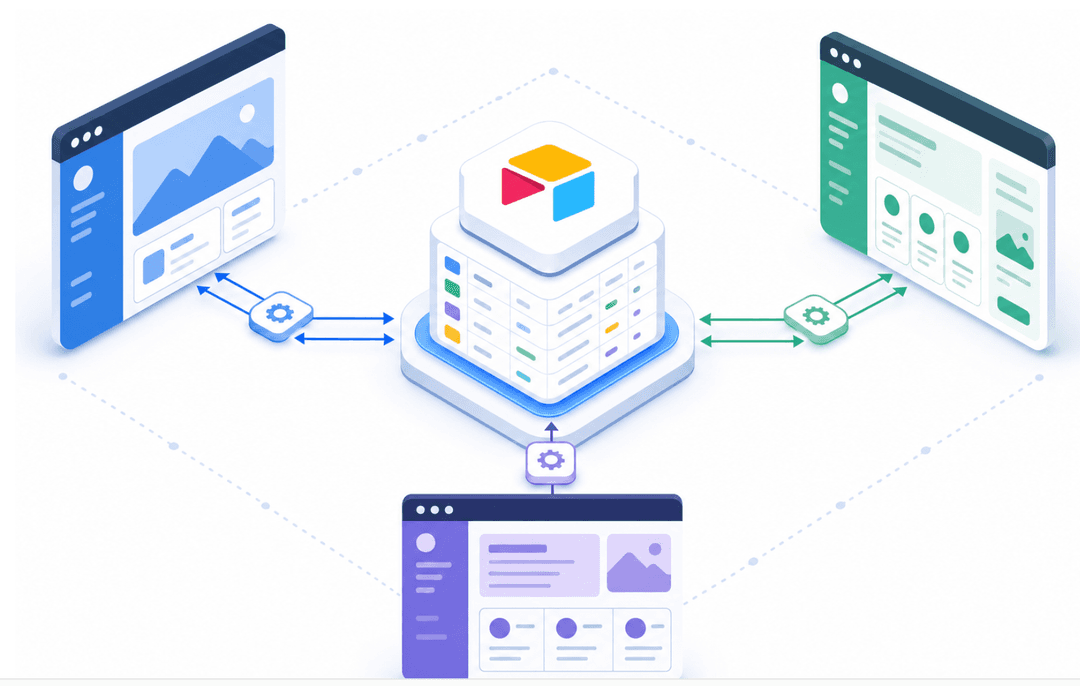
Stacker is built for exactly this use case. You connect your existing data sources, whether that's Airtable, Google Sheets, or a SQL database, and Stacker generates a fully functional web app your clients can actually log into. No engineering team required.
What sets it apart is the permission layer. You control what each client sees down to the row level, so every user only ever sees their own projects, files, invoices, or tickets. That makes it a strong fit for agencies, consultants, and service teams managing multiple accounts at once.
A few things worth knowing about how it works:
- You build on top of data you already have, so there's no migration or rebuild required to get started.
- Role-based access means you can give clients a read-only view while keeping internal notes and records separate.
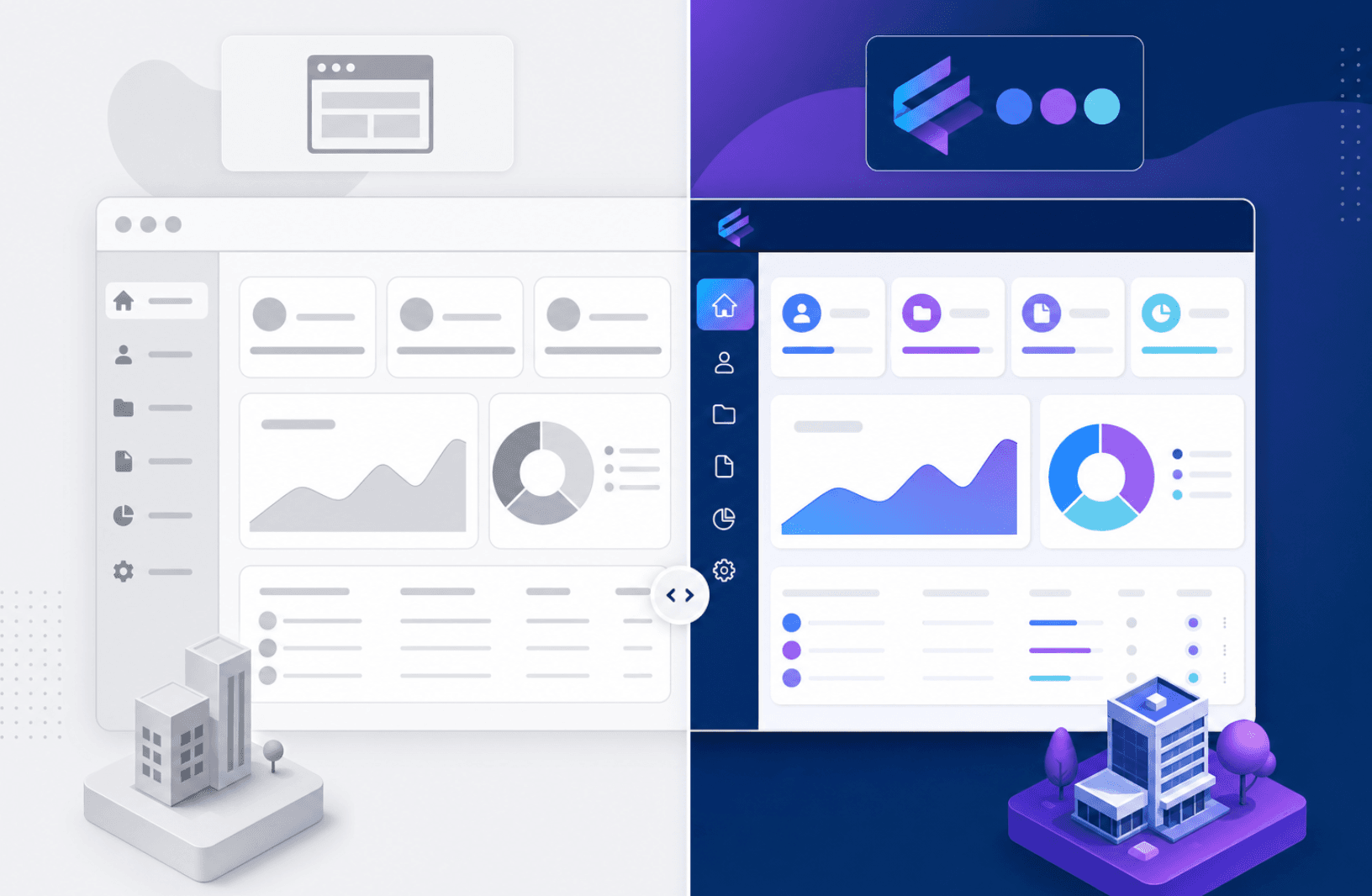
- The interface your clients see is branded and clean, not a generic spreadsheet exposed through a link.
- Stacker supports two-way data sync, so client-submitted forms or updates flow back into your source data automatically.
It's particularly well-suited for small businesses and freelancers who need no-code client portal options. If you've been stitching together shared folders, email threads, and spreadsheets to manage client work, Stacker gives you a single place to bring all of that together.
Final Thoughts on Implementing Client Portals
You don't need perfect processes before launching a portal. You need one pain point worth solving and data that already exists somewhere. The best client portals go live in weeks, not months, because they're built on top of what teams already have instead of forcing a migration. See how Stacker works if you want a portal running without starting from zero.
FAQ
What's the difference between a client portal and a file transfer tool?
A client portal gives clients secure login access to view project status, communicate with your team, and manage files all in one place, while a file transfer tool like Dropbox only moves files between locations without any visibility into project progress or account activity. Portals replace the need for status update emails and keep all client communication centralized.
Best client portal software for small business without coding?
Stacker lets you build a custom client portal on top of your existing data sources like Airtable or Google Sheets without writing code. You control what each client sees through role-based permissions, and the portal syncs data automatically so nothing gets entered twice.
Can I build a free client portal with my own branding?
Free client portal software typically limits customization and removes white-labeling options, capping the number of clients or file storage. For truly branded portals with custom domains, logo placement, and removal of vendor branding, you'll need a paid plan that supports white-label features.
How much can a client portal actually save my team?
Web self-service portals can save up to $11 per call avoided, and businesses fielding 3,000 calls weekly could save roughly $1.7 million annually by shifting interactions to self-service. Teams also reclaim hours previously spent answering status update emails when clients can check progress themselves.
Should I migrate all my data before launching a client portal?
No. Start by connecting your client portal to the data sources you already use instead of migrating everything first. Teams that build portals on top of existing Airtable, Google Sheets, or CRM data go live faster and avoid the delays that come with trying to rebuild entire systems before launch.