

Spreadsheets hit a wall once your team grows or your data gets complex. You're stuck copying files around, dealing with version conflicts, and manually updating people who need live information. The solution is converting your Excel or Google Sheet into an app that handles permissions, automation, and real-time access. This guide walks you through exactly how to convert your spreadsheet, including data cleanup, tool selection, workflow migration, and interface design that actually fits how your team works.
TLDR:
- Spreadsheets fail when multiple users need access, lacking permissions and version control
- Clean your data before conversion: remove merged cells, standardize formats, label columns
- AI app builders work best for non-technical teams needing fast, custom workflows
- Start by migrating one critical workflow, test it, then expand to avoid breaking everything
- Stacker builds working apps from plain language and syncs with your existing spreadsheet data
Why You Should Turn Your Spreadsheet Into an App
Spreadsheets are a great starting point, but they were built for personal analysis, not team collaboration or shared workflows. Once your data grows or more people need access, the cracks start to show.
Here are some of the most common pain points that push teams to make the switch:
- Version control becomes a nightmare when multiple people edit the same file, leading to conflicts and lost data.
- There are no user permissions, so anyone with access can see or edit everything, including data they shouldn't be able to access.
- Spreadsheets break under pressure, especially with large datasets, leading to slow load times, formula errors, and crashes.
- Sharing data externally with clients or vendors means emailing files back and forth with no audit trail.
- There is no real-time visibility, so stakeholders can't check live data without someone manually sending an update.
Turning your spreadsheet into an app solves these issues by giving you a structured interface, proper access controls, and a single source of truth your whole team can rely on.
Understanding When Spreadsheets Reach Their Limits
Spreadsheets are genuinely useful for a wide range of tasks, but they have a ceiling. Once your data grows, your team expands, or your processes get more complex, that ceiling becomes hard to ignore.
Some of the most common signs your spreadsheet has hit its limit:
- Multiple people need to edit the same file at once, leading to version conflicts and overwritten data.
- You're manually copying data between sheets or sending files back and forth over email.
- Non-technical users make formatting errors that break formulas or corrupt your data.
- There's no way to control who sees what, so sensitive information gets exposed to the wrong people.
- The file has grown so large it loads slowly or crashes entirely.
At this point, a spreadsheet stops saving you time and starts costing it. Converting your Excel or Google Sheet into an app gives you the same underlying logic with a proper interface, access controls, and the ability to scale.
Document Your Spreadsheet's Jobs to Be Done
Before picking a tool or copying any data, document what your spreadsheet actually does. Not what it contains, but what jobs it performs for your team.
Walk through these questions:
- What tasks do people perform each time they open the file? Are they entering data, running lookups, or updating statuses?
- Where are the decision points? What information triggers an action or a change in status?
- What does the spreadsheet produce in the end? Reports, a ranked list, an approval queue?
- Who needs access, and does everyone need to see the same information?
The answers become the blueprint for your app. Skip this step, and you risk rebuilding the same spreadsheet in a new container, which solves nothing. A good app is a purpose-built workflow, not a replica of what you already have.
Clean and Structure Your Data for App Migration
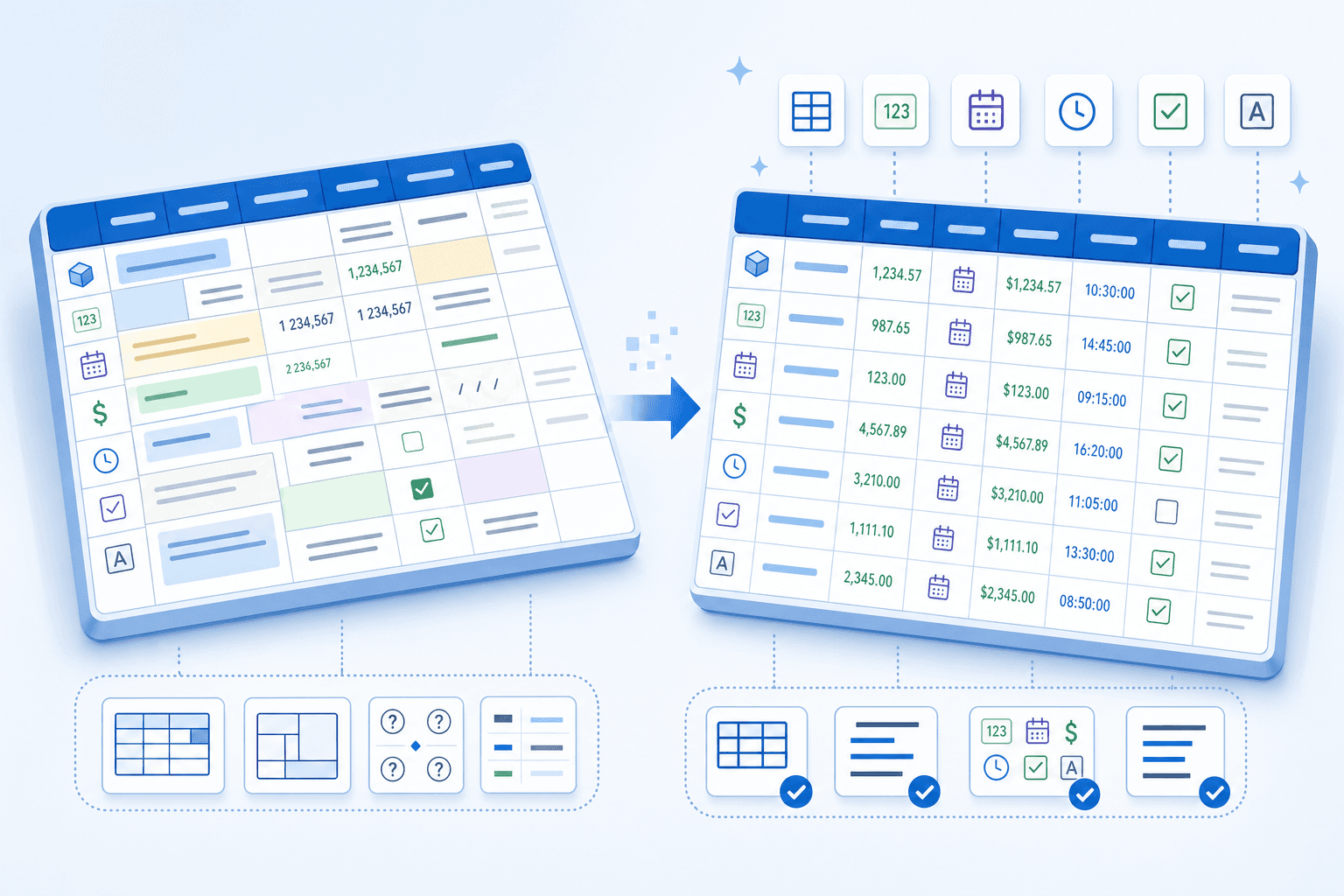
Before any conversion tool can reliably read your spreadsheet, the data in it needs to be clean and consistently structured. Messy formatting, merged cells, and scattered logic are among the most common reasons app migrations fail or produce broken outputs.
Here are the most important things to fix before you start:
- Remove merged cells and split them into individual rows or columns, since most conversion tools cannot parse merged layouts correctly.
- Standardize data types within each column so dates are formatted consistently, numbers are not stored as text, and dropdown values are consistent.
- Move formulas to clearly labeled columns and document any logic that the app will need to replicate.
- Delete any blank rows or columns used purely for visual spacing, as these can disrupt how tools detect your data range.
- Give every column a clear, unique header in row one, with no empty header cells.
Cleaning your spreadsheet before conversion will save you time debugging the output afterward.
Choose the Right Tool for Your Spreadsheet Conversion
The right approach depends on three factors: your team's technical skill level, your timeline, and how much customization you actually need.
| Approach | Best for | Key tradeoff |
|---|---|---|
| AI app builder | Non-technical teams that want to describe and build | Output quality depends on how clearly you define requirements |
| No-code with data sync | Teams keeping Airtable, Sheets, or similar tools intact | Works best for simpler data models |
| Database migration tool | Moving off spreadsheets permanently | Requires upfront data modeling work |
| Custom development | Highly unique or compliance-driven workflows | Higher cost and longer build time |
For most small and mid-sized teams, an AI app builder covers the full range of requirements without the cost or complexity of custom development.
How to narrow down your choice
A few questions worth asking before committing to any tool:
- How often does your data structure change? Frequent schema changes are harder to manage once you migrate to a database.
- Who needs to access the app? External users typically require proper permissions and authentication that spreadsheets can't handle.
- Do you need offline access or mobile support? Some tools export to Android or iOS; others are web-only.
Answering these honestly will save you from picking a tool that fits today but breaks under next quarter's requirements.
Move Your Workflow and Data Into Your New App
Start with your most critical workflow, not your entire dataset. Migrate one process, test it thoroughly, then expand from there.
The core steps:
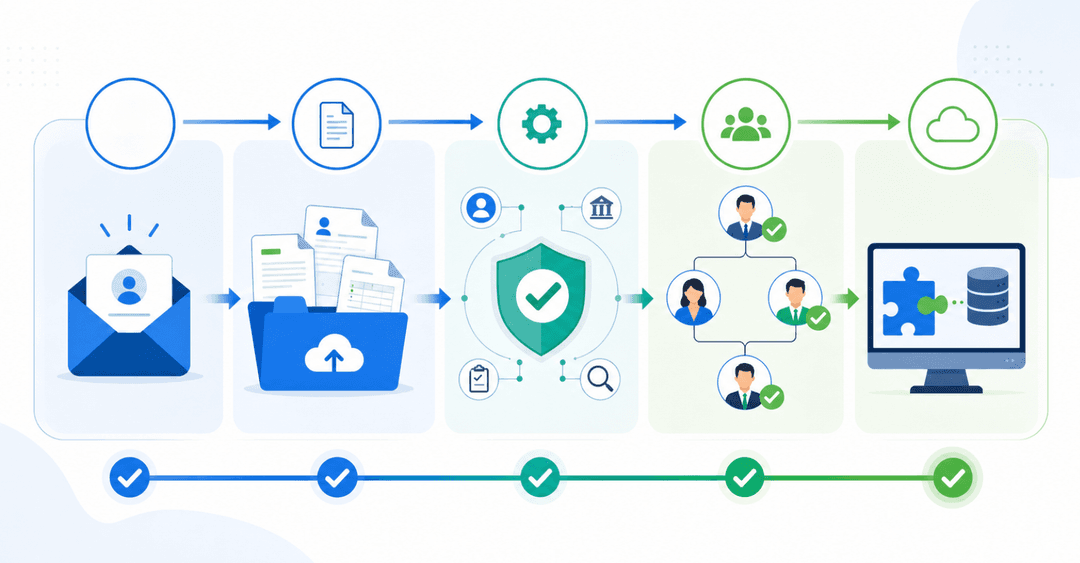
- Import your cleaned data into the app's database tables, mapping each spreadsheet column to the correct field type so nothing gets lost in translation.
- Recreate key calculations as formula fields or workflow logic inside the app, replacing any formulas that previously lived in hidden spreadsheet cells.
- Set up user roles so clients, vendors, and admins each see only what they need, keeping sensitive data protected by default.
- Configure automation for repetitive tasks like status updates or email notifications so your team stops doing manual work that the app can handle on its own.
Run both systems in parallel for the first week or two. You'll catch gaps before anyone outside your team notices them.
Build the Right Interface for Your Users
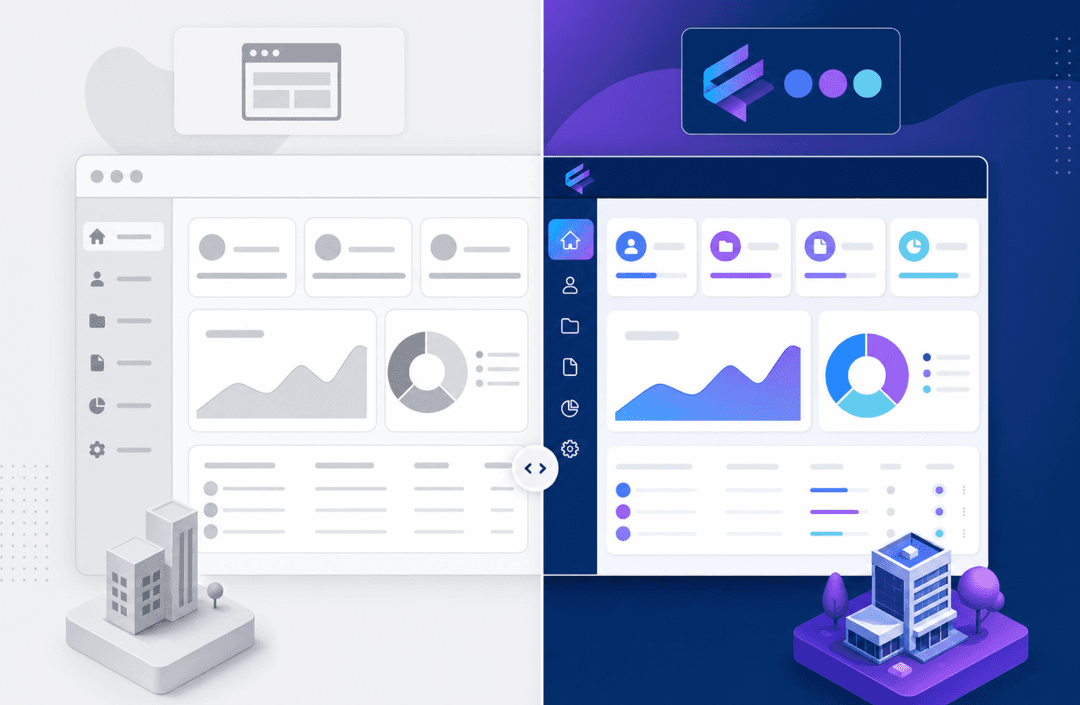
Once your data is in the app, resist the temptation to recreate your spreadsheet row by row. The interface is where the real upgrade happens.
Think in terms of who's looking at what:
- Internal team members need filtered table views, status boards, and quick-access forms with built-in validation.
- External clients or vendors need filtered views showing only their own records, with no access to the broader dataset.
- Managers and admins need summary dashboards that automatically roll up key numbers, instead of requiring someone to compile them manually.
Forms deserve special attention here. Unlike a spreadsheet cell, a form field can enforce the right data type, flag missing values, and stop errors before they enter your system at all.
Check how the app displays on mobile, too. Spreadsheets are nearly unusable on phones. A well-built app should work wherever your users actually are.
Turn Your Spreadsheet Into a Stacker App With AI
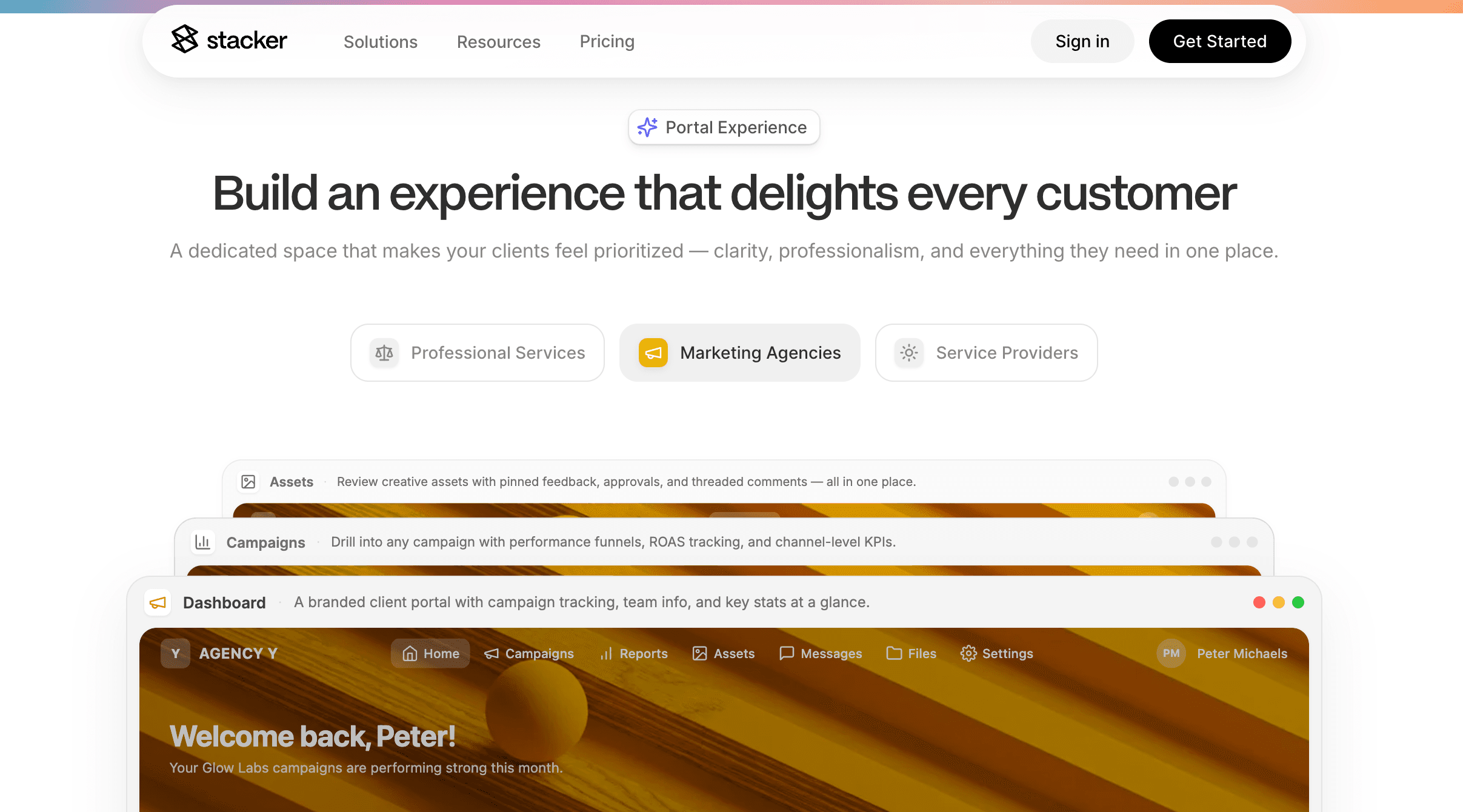
If you've worked through the steps above, you already have everything Stacker needs to get started. Describe what your spreadsheet does in plain language, and the AI builds a working app around it. Permissions, hosting, and authentication are included from the start.
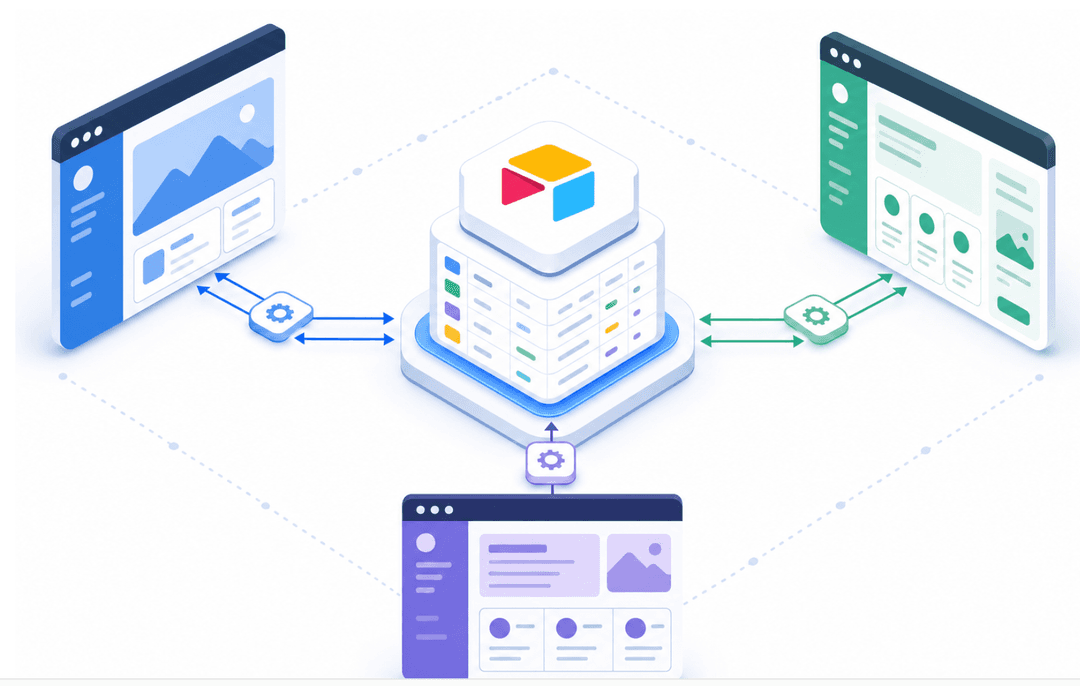
For teams staying on Google Sheets, Airtable, or Notion, Stacker syncs in two directions. Your existing data stays where it is. Stacker puts a proper app interface on top, with role-based access and real-time updates, without requiring you to move anything.
Stacker focuses on business app patterns, so you can describe your workflow, refine it through conversation, and get your app live at yourapp.stacker.app. No developer required.
Final Thoughts on Spreadsheet to App Migration
Spreadsheets weren't designed for team collaboration and complex workflows. When you convert your spreadsheet to a web app, you're giving your existing work a structure that can scale with your team. Focus on cleaning your data first, then move your most critical workflow before touching anything else. Book a demo to talk through how your specific spreadsheet could work as an app.
FAQs
Can I turn a spreadsheet into an app without learning to code?
Yes. AI app builders let you describe what you need in plain language and generate a working app from your spreadsheet data. You skip the technical learning curve and get a functional app with permissions, hosting, and authentication already built in.
What's the best way to convert an Excel spreadsheet to a web application for free?
Start by cleaning your spreadsheet (remove merged cells, standardize data types, label all columns clearly), then use an AI app builder that connects to your existing data source. This approach gives you a proper web interface with access controls while keeping your setup costs low.
How do I know when my spreadsheet needs to become an app?
Watch for these signals: multiple people editing the same file causing version conflicts, no way to control who sees sensitive data, the file loads slowly or crashes with large datasets, or you're manually emailing updates instead of sharing live data. Any of these means your spreadsheet has hit its limit.
Spreadsheet sync vs database migration for turning Excel into an app?
Spreadsheet sync keeps your Google Sheets or Airtable intact while adding an app interface on top, which works well for simpler data models. Database migration moves you permanently from spreadsheets into a proper relational database, which handles complex workflows better but requires upfront data modeling.
Should I migrate my entire spreadsheet at once or start with one workflow?
Start with your most critical workflow, test it thoroughly, then expand. Migrating everything at once increases the risk of broken logic and missed edge cases, while a single-workflow approach lets you run both systems in parallel and catch problems before they affect your whole team.