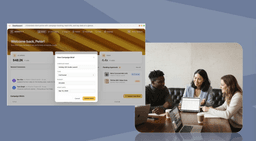
You want clients to log into a portal, see their own project files, track progress, and reach your team without bouncing between email and shared drives. You're looking at WordPress portal plugins because your site already runs there and it feels like one less subscription to manage. The initial setup is doable: pick a plugin, configure roles, build a login page. But keeping it working is where things get messy. Plugins conflict after updates. Performance slows down under load. The interface looks clunky on mobile. What starts as a free solution turns into ongoing maintenance, hosting upgrades, and developer hours. We'll show you how to build a WordPress client portal properly and when it makes more sense to connect your data to a tool built for this without the plugin stack.
TLDR:
- WordPress client portals use plugins to create password-protected client spaces for file sharing and updates.
- Free plugins often require $30-$100/month in hosting upgrades and developer time to handle conflicts.
- WordPress works if you have technical resources but struggles with scale, mobile UX, and compliance needs.
- Businesses using the right portal tool commonly report reduced support workload and fewer client emails.
- Stacker connects to your existing data sources to build client portals without WordPress dependencies.
What Is a WordPress Client Portal?
A WordPress client portal is a password-protected space inside your WordPress site where clients log in to access information relevant to them. That sounds simple, but it's meaningfully different from a standard login page. A login page just gates access. A portal actually does something once you're inside: it surfaces files, project updates, and communication tools specific to that client.
Three components make that possible:
- Permissions: controls over who can see what, down to individual records or files.
- Content delivery: documents, files, and project updates surfaced to the right client.
- Communication tools: messaging or comment threads that cut the email back-and-forth portals are supposed to replace.
WordPress handles all of this through plugins. The plugin directory has a wide range of options labeled for client portal or client management purposes, ranging from lightweight file-sharing tools to full project management systems.
Why Build a Client Portal on WordPress?
If your business already runs on WordPress, building a client portal there has real appeal. You own the infrastructure, you control the data, and you're not paying for another standalone SaaS subscription on top of everything else.
The plugin ecosystem is genuinely broad. Whether you need simple document sharing or a full client management setup, there's likely something that fits your workflow without requiring code. For teams already comfortable inside the WordPress admin, the learning curve is manageable.
Cost is another draw. Many client portal plugins have free tiers, and since you're working within a site you already host, incremental expenses stay low. That matters for small businesses watching every line item.
That said, "works for the price" and "works well" aren't always the same thing. Plugin conflicts, maintenance overhead, and security gaps are real tradeoffs that show up once you're past the setup stage. Those are worth understanding before you commit.
Key Features Your WordPress Client Portal Needs
Not every plugin delivers the same experience. Before picking one, know which features actually matter for day-to-day use.
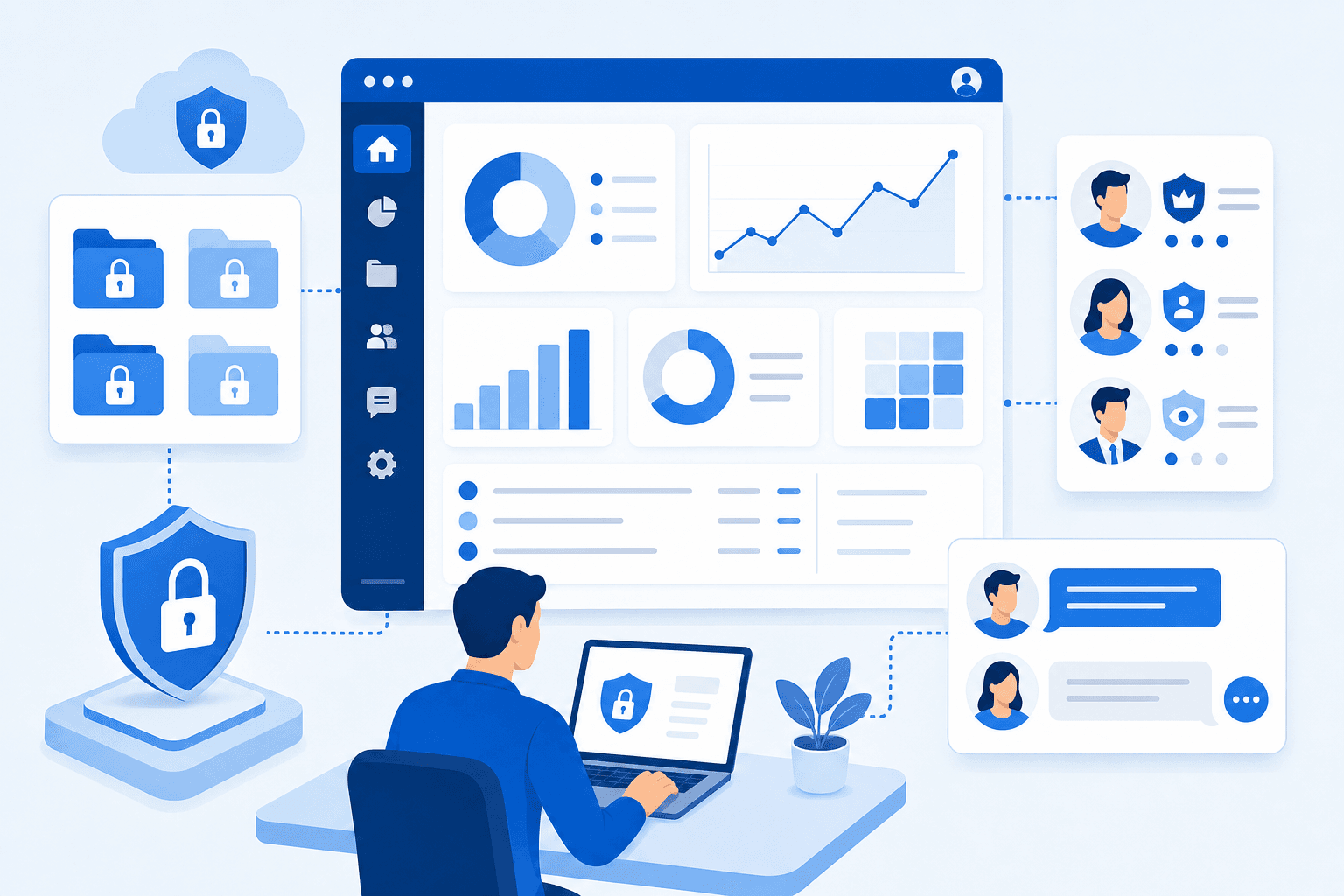
- Permission-based access controls: Each client should see only their own records. Role-level and field-level restrictions prevent one client from accidentally viewing another's files or updates.
- Secure file sharing: Documents need to sit behind authentication, not accessible via public URLs. Clients should upload and download without you forwarding links manually.
- Client-specific dashboards: A generic view for all clients misses the point. Each user should land on something relevant to their own account or project.
- Communication tools: Comment threads, messaging, or activity notifications cut the email back-and-forth that portals are supposed to replace.
- Integration capabilities: Your portal needs to connect to the tools your team already uses, including CRM data, project updates, and invoices. A portal that operates in isolation just creates a new silo instead of eliminating one.
Top WordPress Client Portal Plugins in 2026
Picking the right plugin depends largely on what your portal actually needs to do. Here's how the most commonly used options compare.
| Plugin | Best For | Free Tier |
|---|---|---|
| WP Customer Area | Private pages and file sharing per client | Yes |
| WP-Client | Invoices, projects, messaging, and billing | No |
| Simple Membership | Basic content gating by membership level | Yes |
| MemberPress | Payment-gated content and membership sites | No |
| Project Huddle | Visual project progress tracking for agencies | Lite version |
| Jetpack CRM | Contact management with built-in client tools | Yes |
| SuiteDash | All-in-one business suite via WP integration | No |
WP Customer Area and Simple Membership work well for leaner setups where basic access control is enough. WP-Client and SuiteDash cover more ground but carry a real cost. Project Huddle is purpose-built for agencies that want clients to track progress visually instead of filing support tickets. Jetpack CRM starts as a contact database and layers portal features on top. MemberPress fits best when payment-gated content is the core need, less so for project-based collaboration.
How to Set Up a WordPress Client Portal Step by Step
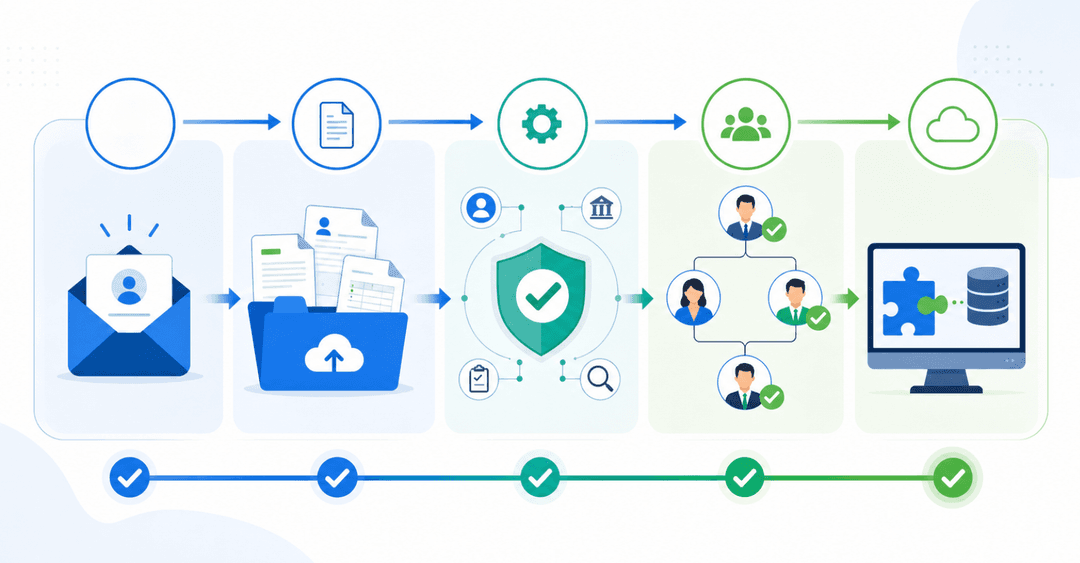
Setting up a portal starts with the plugin, but the configuration steps that follow are where most people lose time. Work through these in order.
- Install and activate your chosen plugin from the WordPress plugin directory. WP Customer Area or Simple Membership cover most starter use cases.
- Configure user roles. Decide which roles get portal access and what each role can see. Most plugins expose this under a settings or permissions tab.
- Build your client-facing pages. Create the login, dashboard, and file-sharing pages your clients will use. Assign these in the plugin's page settings.
- Apply your branding. Upload your logo, match your site's colors, and adjust any portal-specific CSS the plugin exposes.
- Set up file sharing. Create upload/download areas and confirm files sit behind authentication rather than publicly accessible URLs.
- Test as a real client. Create a test user account, log in, and verify the experience matches your intent before sending any client an invite.
Security Considerations for WordPress Client Portals
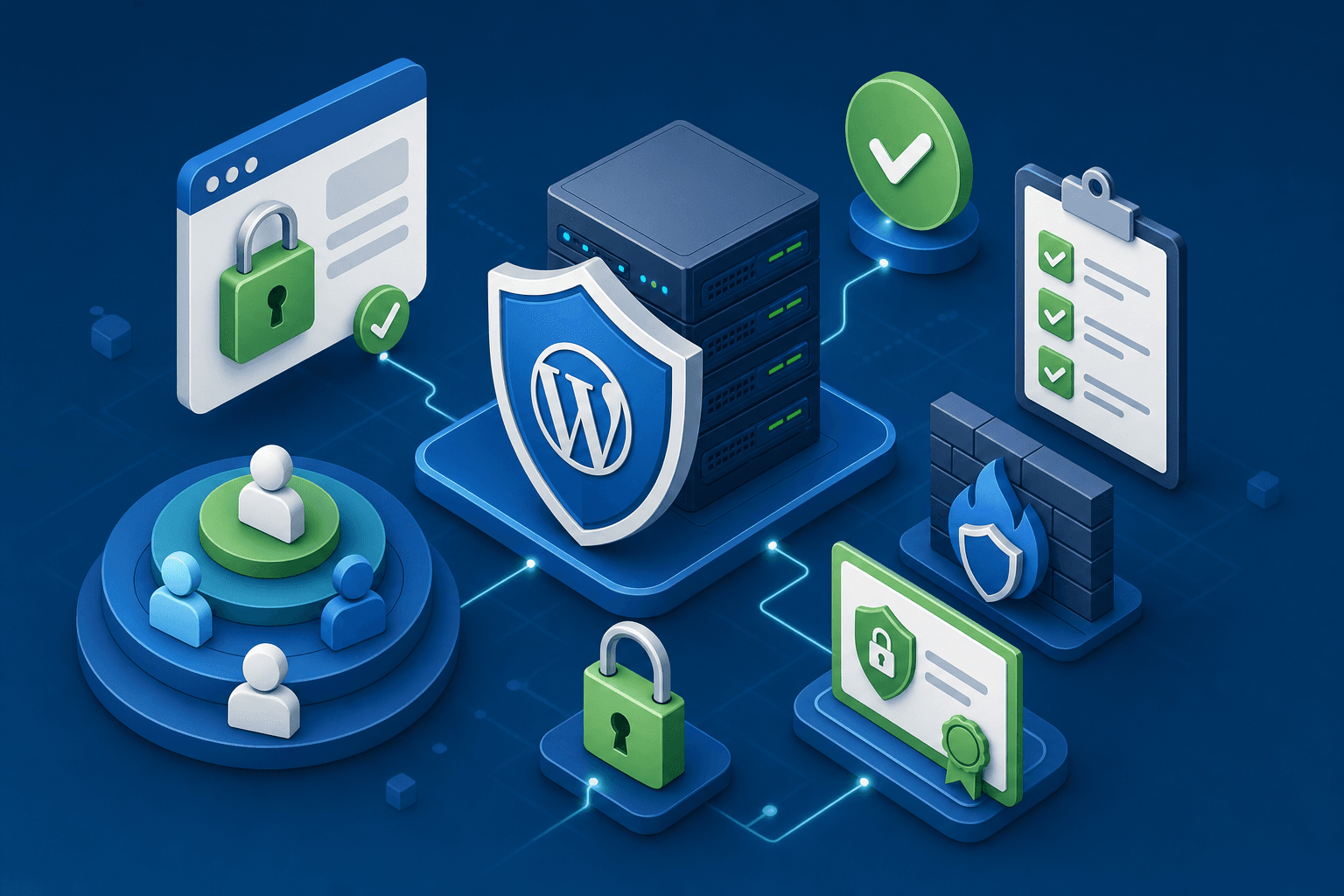
Handling client data inside WordPress requires more than a strong password. Because WordPress powers such a large share of the web, it attracts consistent attention from attackers, and a portal that exposes sensitive files, invoices, or project details raises the stakes further.
A few practices worth following:
- Keep WordPress core, themes, and all portal plugins updated on a regular schedule, since outdated code is the most common entry point for breaches.
- Use two-factor authentication for both admin accounts and client logins wherever your chosen plugin supports it.
- Lock down portal access by role so each client sees only their own records, not other accounts.
- Run your portal over HTTPS and confirm your SSL certificate is current before going live.
- Audit user permissions periodically, especially after onboarding new clients or offboarding old ones.
If your portal will store anything subject to compliance rules, such as health data or financial records, you will also need to think carefully about where data is hosted and whether your WordPress setup meets applicable compliance standards.
The Hidden Costs of WordPress Client Portals
The sticker price of a free plugin is rarely the whole story. Business websites often run many plugins at once, and each one needs updates, compatibility checks, and occasional troubleshooting. A portal adds several more to that pile.
The costs that catch people off guard:
- Plugin licensing: Free tiers often cap out at basic features. Adding file management, advanced permissions, or upgrading to a paid tier sometimes means paying across multiple plugins working together. If costs keep climbing, it may be worth switching to a new client portal.
- Hosting upgrades: Portal traffic, file storage, and authenticated sessions consume more server resources than a standard WordPress site. Shared hosting plans often struggle; a VPS or managed WordPress host adds $30 to $100 or more per month.
- Maintenance time: Every plugin update carries some risk of breaking something else. Testing updates, resolving conflicts, and rolling back changes is recurring work that doesn't show up in any plugin's pricing page.
- Developer costs: When plugin conflicts or customization needs exceed what settings menus can handle, you're looking at hiring someone. Even a few hours of developer time changes the math considerably.
"Free" in the WordPress world usually means free to install, not free to run.
Budget for the full picture before you commit to building there.
Limitations of WordPress for Client Portals
WordPress works well enough for simple setups, but the limitations surface fast once your portal needs grow.
- Technical complexity scales quickly. Basic plugin configuration is manageable, but anything beyond it, like custom permission logic or non-standard layouts, typically requires PHP or CSS knowledge most business owners don't have.
- Plugin stacks are fragile in ways that are hard to predict. Multiple interdependent plugins break unexpectedly when one updates, and tracing the source isn't always straightforward.
- Performance drops at scale. Authenticated sessions and file storage layer on top of an already plugin-heavy install, and most shared hosting buckles under the load.
- Client-facing UX tends to look dated. Getting a polished, professional portal appearance requires real styling work that goes well beyond plugin settings.
- Mobile support is inconsistent. Most portal plugins were built with desktop in mind, and responsive behavior varies considerably across devices.
When WordPress Makes Sense (and When It Doesn't)
WordPress earns its place in specific situations. Outside of those, it tends to create more work than it saves.
Here is a straightforward breakdown of where it fits and where it falls short:
WordPress is a good fit if:
- Your site already runs on WordPress and adding a portal means one less tool to manage
- You have a developer or WordPress-savvy person on your team who can handle configuration and upkeep
- Your portal needs are relatively contained: file sharing, basic dashboards, simple access control
WordPress is a poor fit if:
- You have no technical resources and no budget to hire any
- Your business handles regulated data with compliance requirements
- You need a portal live quickly, without a setup and testing runway
- Your clients expect a polished, mobile-friendly experience out of the box
The honest version: WordPress portals reward investment. Time, technical knowledge, and ongoing maintenance. If your business has those things, the tradeoff can work. If it doesn't, the gap between "free plugin installed" and "portal clients actually want to use" is wider than most people expect.
Alternatives to WordPress Client Portals
Dedicated client portal software, no-code app builders, and AI-powered tools each offer a faster path to a working portal than assembling WordPress plugins from scratch. The right tool category depends on how much setup you're willing to take on.
- Dedicated client portal software: purpose-built products for file sharing and client communication that get you running quickly, without managing themes, hosting, or plugin conflicts.
- No-code app builders: connect to your existing data sources and build portal interfaces without writing code, giving you more flexibility over structure and permissions.
- AI-powered builders: generate portals from plain language descriptions, cutting configuration time down considerably.
Building a Client Portal Without WordPress Using Stacker
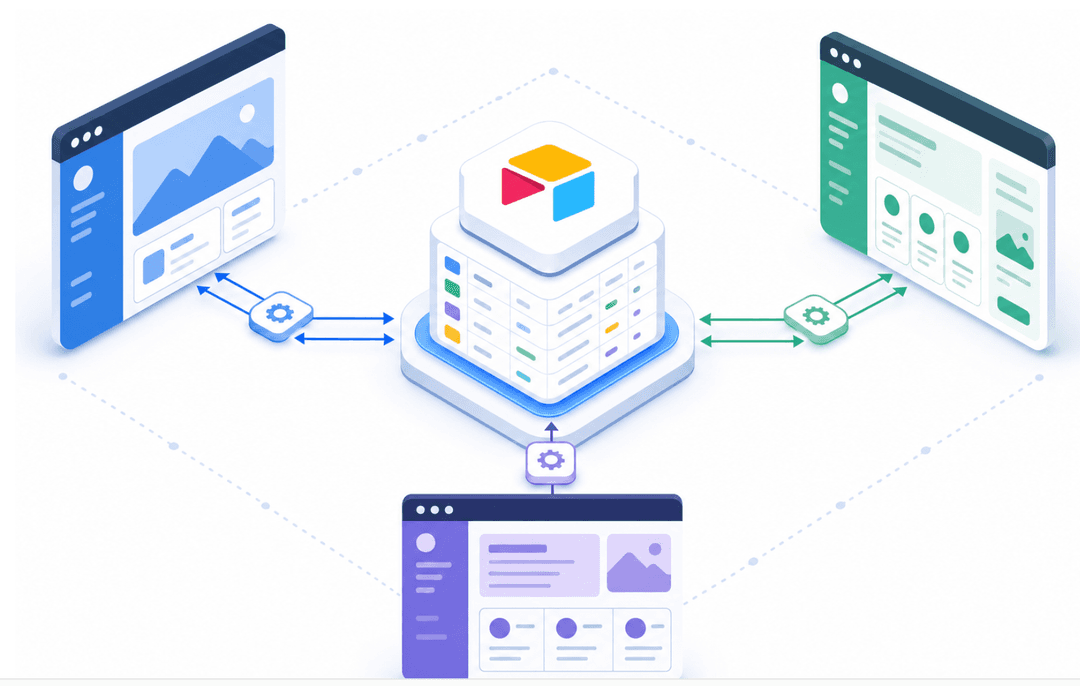
Stacker offers a way to build a client portal without touching WordPress at all. Instead of installing plugins, managing hosting, or wrestling with wp-admin settings, you connect Stacker to your existing data sources, like Airtable, Google Sheets, or a SQL database, and build a portal on top of that data.
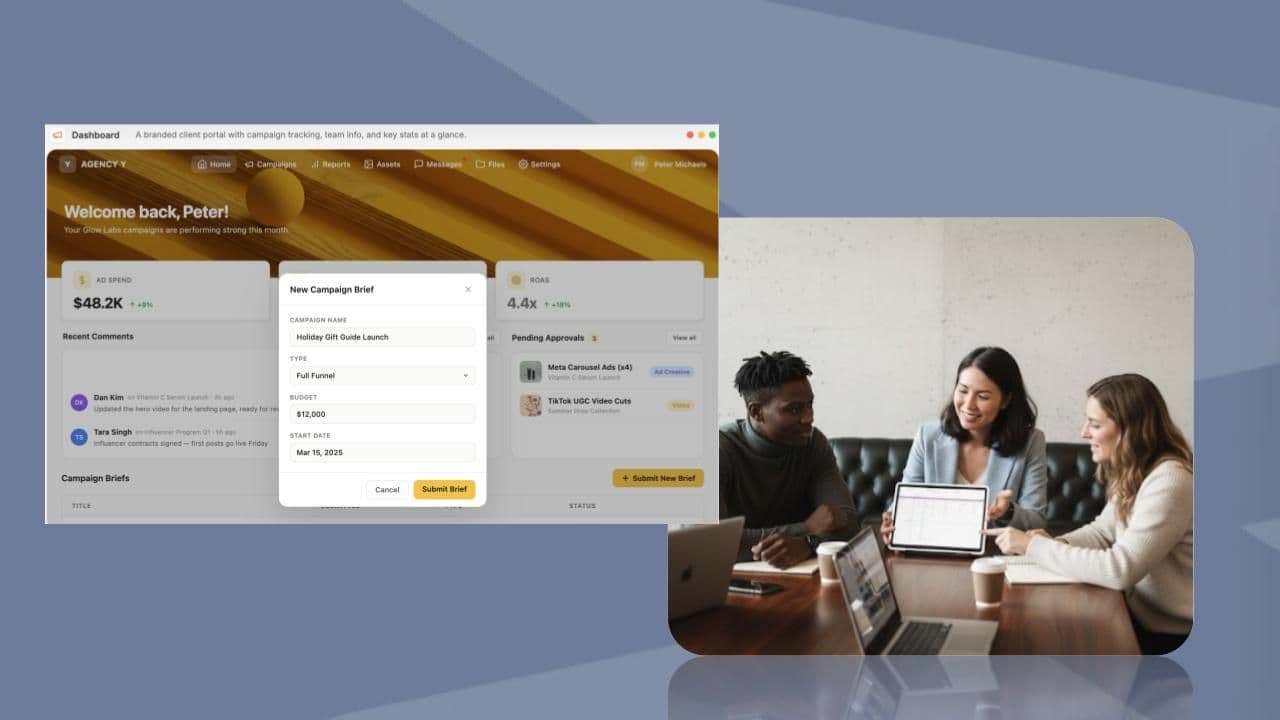
The result is a client-facing app where customers can log in, view their own records, submit requests, track project status, and interact with your team without ever seeing your internal data.
What You Can Build With Stacker
- Role-based access control so each client only sees their own data, not another customer's records
- Custom views and forms tailored to your workflow, without writing code
- A branded login experience with your logo and colors
- Integrations with tools you already use, so your data stays in sync
Who It Works Best For
Stacker fits service businesses, agencies, and ops teams that already have data living somewhere and need a clean way to expose a subset of it to clients. If your current setup involves emailing spreadsheets or granting clients partial access to internal tools, Stacker is worth a close look.
There is no WordPress dependency, no plugin conflicts to troubleshoot, and no need to manage a CMS just to give clients a login page. You get a dedicated client portal without the overhead of building and maintaining one from scratch.
Final Thoughts on WordPress as a Client Portal Solution
The WordPress route works best when you already have technical resources in place and portal needs that stay relatively simple. For everything else, a dedicated client portal removes the plugin stack, the security questions, and the ongoing maintenance load that WordPress requires. Pick the option that fits your actual situation, not the one that looks free upfront.
FAQ
WordPress client portal vs dedicated portal software?
WordPress client portals require ongoing maintenance, plugin management, and technical know-how to keep running smoothly. Dedicated portal software comes with hosting, security, and authentication built in, so you can focus on serving clients instead of troubleshooting conflicts. If you don't have technical resources on hand, dedicated software gets you live faster with less friction.
Can I build a client portal for free?
Yes, several WordPress plugins like WP Customer Area and Simple Membership offer free tiers that handle basic file sharing and access control. However, free versions typically limit features like advanced permissions, branded login pages, and file storage, and you'll still need to cover hosting costs and potential developer time for customization. Free to install rarely means free to run properly.
What's the best WordPress customer portal plugin for small businesses?
WP Customer Area works well for straightforward file sharing and client-specific pages, while Jetpack CRM fits teams that want contact management layered into their portal. The right choice depends on whether you need basic access control or fuller project tracking and communication tools. Most small businesses hit the limits of free tiers quickly once clients expect a polished experience.
How long does it take to set up a WordPress client portal?
Basic setup with a plugin like WP Customer Area takes 2-3 hours if you're familiar with WordPress admin. But configuring permissions properly, applying your branding, testing file security, and troubleshooting plugin conflicts can stretch that to several days or weeks, especially without technical help. Most businesses underestimate the testing and refinement phase.
When should I use a no-code app builder instead of WordPress for my client portal?
If you need granular permissions, want to connect to existing data sources like Airtable or Google Sheets, or lack technical resources to manage WordPress updates and hosting, a no-code app builder makes more sense. WordPress portals reward ongoing investment in maintenance and customization, while builders like Stacker let you describe what you need and ship a working portal without managing infrastructure.