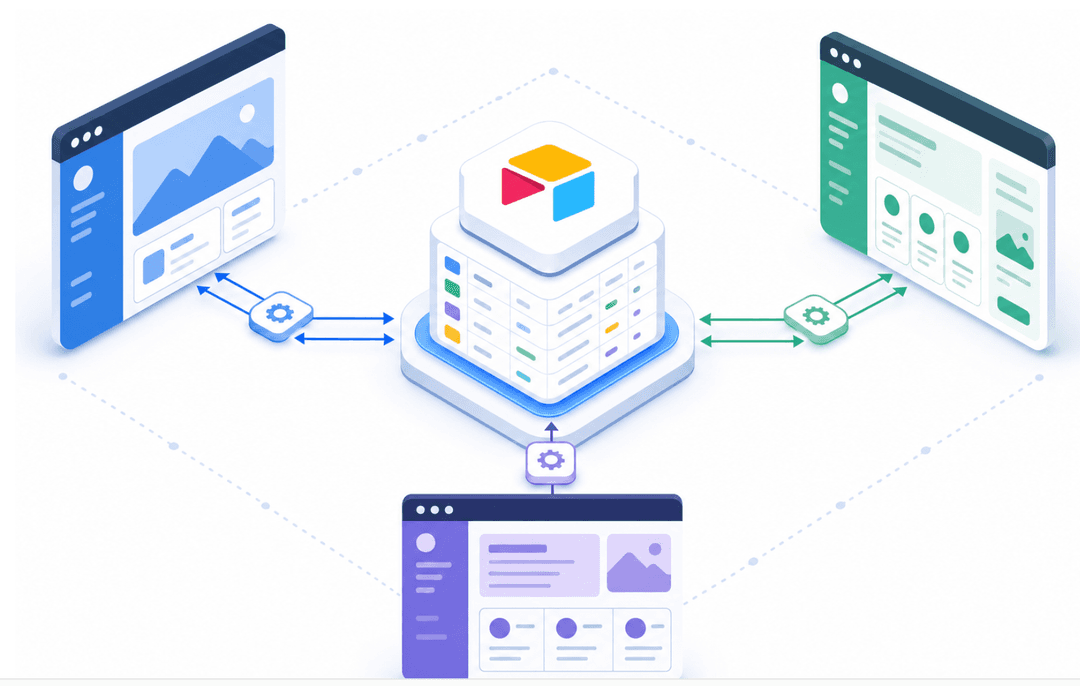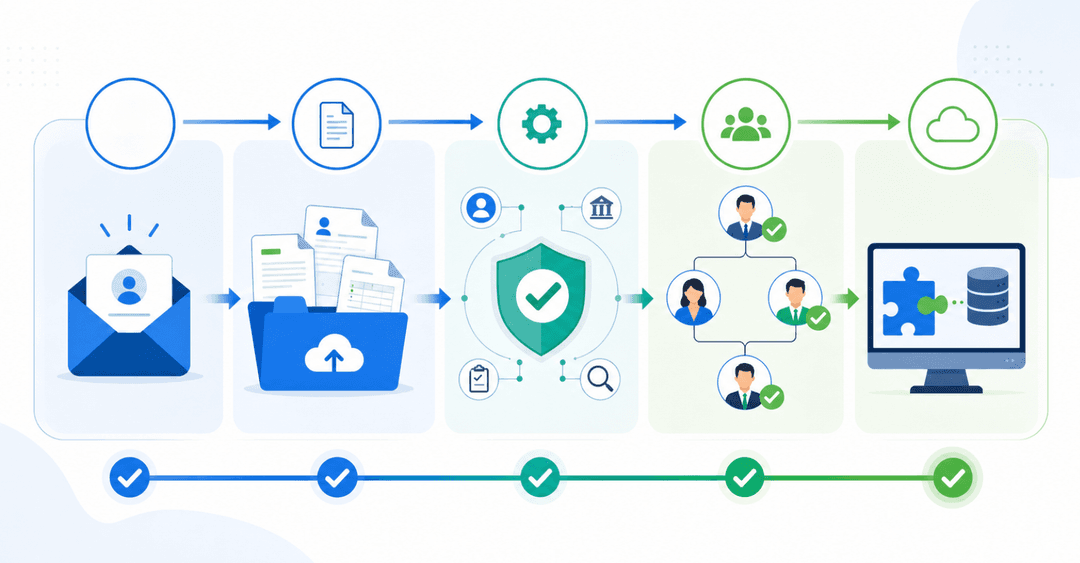


The HubSpot customer portal gives your customers a login to check ticket status and search your knowledge base. For teams already running Service Hub Professional or Enterprise, it's included in what you're already paying for, with no separate product to buy, and it connects directly to your existing contact records and knowledge base. But it's built for one thing only, and the limits become obvious fast: no custom views, no file delivery, no way to show account-specific data or project progress. This guide walks through setup, pricing, and real constraints, and shows what your options look like when you need a portal that does more than just manage support requests.
TLDR:
- HubSpot's customer portal handles ticket tracking but caps file uploads at 50-100MB and offers no custom data views.
- Zendesk and Zoho offer similar support-focused portals, starting at $55-115/month per agent.
- You need a custom portal when clients require project tracking, document sharing, or account-specific views.
- Stacker builds branded customer portals that connect to your existing data without code or developer resources.
What Is a HubSpot Customer Portal
HubSpot's customer portal is a login-protected space to view and manage tickets without going back and forth over email. Built into HubSpot's Service Hub, it gives customers a central place to check ticket status, read knowledge base articles, and handle basic self-service tasks on their own schedule.
The core idea is simple: customers sign in, see only their own tickets, and follow progress without waiting for a reply from your team. It reduces repetitive support requests while giving customers greater visibility into where things stand.
That said, the portal works best for teams already deep in the HubSpot ecosystem who want a low-friction way to extend self-service to their customers. As you'll see throughout this article, it has real limits depending on what you actually need it to do.
HubSpot Customer Portal Availability and Pricing
The customer portal is available on HubSpot Service Hub Starter, Professional, and Enterprise tiers. Most businesses that want meaningful functionality end up at Professional.
Service Hub Professional runs $90 per seat per month as of early 2026, plus a $1,500 onboarding fee. That onboarding fee catches people off guard. It makes the entry point higher than the monthly rate alone implies, and for smaller teams, the total commitment adds up fast.
If you're already invested in the HubSpot ecosystem, the portal fits naturally into what you're already paying for. If the portal is your primary goal, though, that cost structure deserves a hard look before you sign up.
How to Set Up a HubSpot Customer Portal (Step by Step)
HubSpot's customer portal is available through Service Hub Professional and Enterprise plans. Before you start, make sure you have the right subscription and admin access.
Here's how to get it running:
- Go to your HubSpot account settings, then search for "Customer Portal" under the Service section to open the setup menu.
- Connect a custom domain so customers access the portal through your branded URL instead of a generic HubSpot link.
- Configure single sign-on options and decide whether customers can self-register or need an invitation.
- Set up your knowledge base content, since the portal pulls articles directly from your HubSpot knowledge base.
- Customize the appearance to match your brand colors and logo.
- Set up ticket visibility so customers can view, track, and reply to their open support requests after logging in.
Once configured, customers receive an email invitation to create their account and access the portal.
What You Can Actually Do With HubSpot's Customer Portal
Once you're set up, here's what customers can actually do inside the portal:
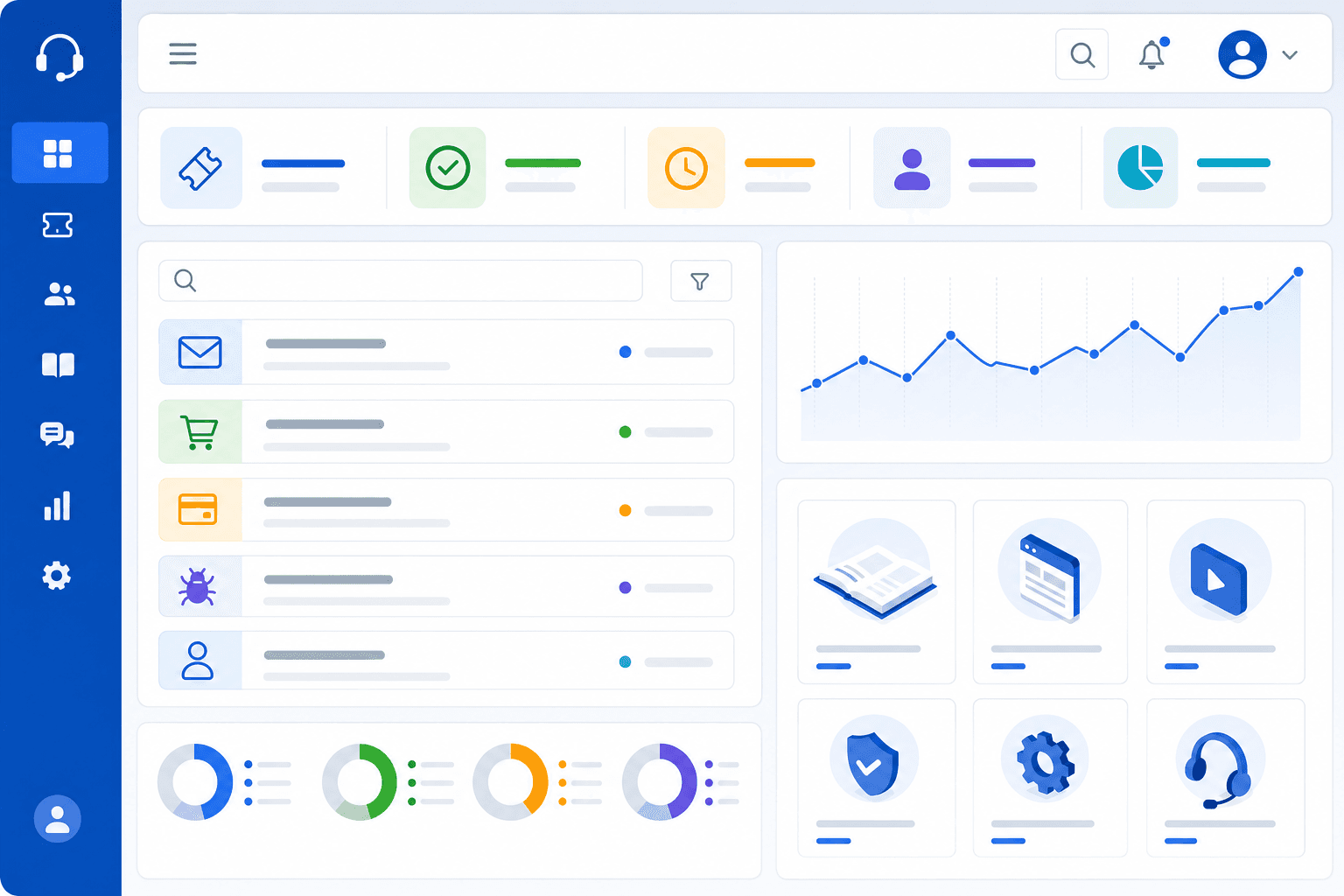
- View all open and closed support tickets tied to their account
- Reply to tickets directly from the portal without going through email
- Check real-time status updates as your team works through their requests
- Browse knowledge base articles to find answers without submitting a ticket
- Review their full support history in one place
The portal is built around ticket management and self-service content, and it handles both reasonably well. What it doesn't cover is anything outside of support. There's no project tracking, no document sharing, no custom data views. The scope is narrow by design, which works if tickets and a knowledge base are genuinely all you need.
HubSpot Customer Portal Limitations
That narrow scope becomes a problem quickly for teams with needs beyond basic ticket tracking.
For file handling, the limits are specific: customers can attach files to ticket conversations, but uploads on ticket detail pages are capped at 50MB and support only a limited set of file types. New ticket submission forms are more lenient at 100MB with broader format support, but there's no dedicated file delivery mechanism. If your workflow involves sharing documents or deliverables with customers, the portal wasn't built for that.
Beyond files, the broader constraints are worth knowing upfront:
- No support for workflows outside ticket management
- Customization is limited to colors, logo, and basic branding
- No way to display custom data, project info, or account details
- Knowledge base is the only self-service content type supported
- Portal access requires customers to have a HubSpot contact record
If your customers need more than a place to track support requests, the portal will feel like a dead end fast.
Why Self-Service Portals Matter for Customer Experience
Approximately 95% of businesses worldwide have seen demand for self-service options increase. Customers expect answers on their own schedule, not yours.
That shift has real consequences. When customers can't check a ticket status, find a document, or see project progress without emailing your team, they lose confidence in the relationship. Repetitive status-check emails slow your team down and signal to customers that you don't have a system built for them. A portal fixes that by giving customers visibility on demand, without anyone on your side having to respond.
What customers actually want from self-service access comes down to three things: speed (get the answer without waiting for a reply), clarity (see the right information for their account, not a generic queue), and control (take action themselves where possible, like uploading a file or approving a deliverable). A portal that covers all three reduces support load while building trust.
Whether you go with HubSpot, Zendesk, Zoho, or something custom-built, the underlying question is the same: Does it actually meet customers where they are?
Zendesk Customer Portal as an Alternative
Zendesk's customer portal comes through its Help Center, included across all Suite plans. Suite Team starts at $55 per agent per month, Professional at $115, and Enterprise at $169 for multi-brand support and advanced customization.
The feature set goes somewhat broader than HubSpot's. Customers get ticket tracking, community forums, and a searchable knowledge base, with stronger branding controls unlocked at higher tiers.
For larger support teams handling high ticket volumes, Zendesk holds up well. Enterprise's multi-brand capabilities make it a reasonable fit for companies running several products under one roof. For smaller businesses, though, the per-agent pricing compounds fast. At five agents on Professional, that's $575 per month before any add-ons. Like HubSpot, the scope stays focused on support. Neither option is built to handle anything beyond ticket management and self-service content.
Zoho Customer Portal as an Alternative
Zoho Creator offers portal building with custom branding, role-based permissions, and tight integration across Zoho Desk, CRM, and Projects. At $12 per user per month, pricing is the most accessible of the three options covered here. If you're already running on Zoho tools, the portal layer integrates seamlessly.
The trade-off is scope. Like HubSpot and Zendesk, Zoho's portal still focuses on support and self-service content. Deeper customization requires familiarity with Zoho Creator's builder, and teams outside the Zoho ecosystem won't get much from the integrations that make it compelling.
| Solution | Starting Price | Core Features | File Upload Limits | Best For | Main Limitations |
|---|---|---|---|---|---|
| HubSpot Customer Portal | $90 per seat per month plus $1,500 onboarding fee (Service Hub Professional) | Ticket tracking, knowledge base access, ticket status updates, support history review | 50MB on ticket detail pages, 100MB on new ticket forms with restricted file types | Teams already invested in HubSpot Service Hub who need basic ticket management and self-service articles | No custom data views, no project tracking, no document delivery system, limited to support workflows only |
| Zendesk Customer Portal | $55 per agent per month (Suite Team), $115 (Professional), $169 (Enterprise) | Ticket tracking, community forums, searchable knowledge base, multi-brand support at Enterprise tier | Varies by plan tier with broader support at higher levels | Larger support teams handling high ticket volumes, companies running multiple product brands | Per-agent pricing adds up quickly for small teams, scope limited to support workflows |
| Zoho Customer Portal | $12 per user per month (Zoho Creator) | Custom branding, role-based permissions, integration with Zoho Desk, CRM, and Projects | Dependent on Zoho Creator configuration | Businesses already running on Zoho tools who need affordable portal access with cross-product integration | Customization requires familiarity with Zoho Creator builder, limited value outside Zoho ecosystem, still focused on support |
| Stacker (build your own portal) | Custom pricing based on needs | AI-powered portal builder: custom data views, role-based permissions, project tracking, document sharing, connects to existing data sources (HubSpot, Airtable, Google Sheets, SQL databases) | Based on connected data source capabilities | Teams whose needs go beyond ticket management and want a fully custom portal built around their own data and workflows | Requires initial setup to connect data sources and configure views; not a pre-built portal product |
When You Need More Than a Ticket Portal
Ticket portals solve one problem well. But not every business runs on support tickets.
Agencies sharing deliverables need clients to view files, leave feedback, and sign off on work. Service providers tracking multi-step projects need customers to see phase updates, beyond just ticket status. Businesses with complex account data need portals that surface the right records for the right person, not a generic support queue.
The moment you need custom data views, multiple user types, or anything outside ticket management, these platforms hit the same wall. They weren't designed to model how your business actually operates. That's where a more flexible approach becomes worth considering.
Building a Customer Portal With Stacker
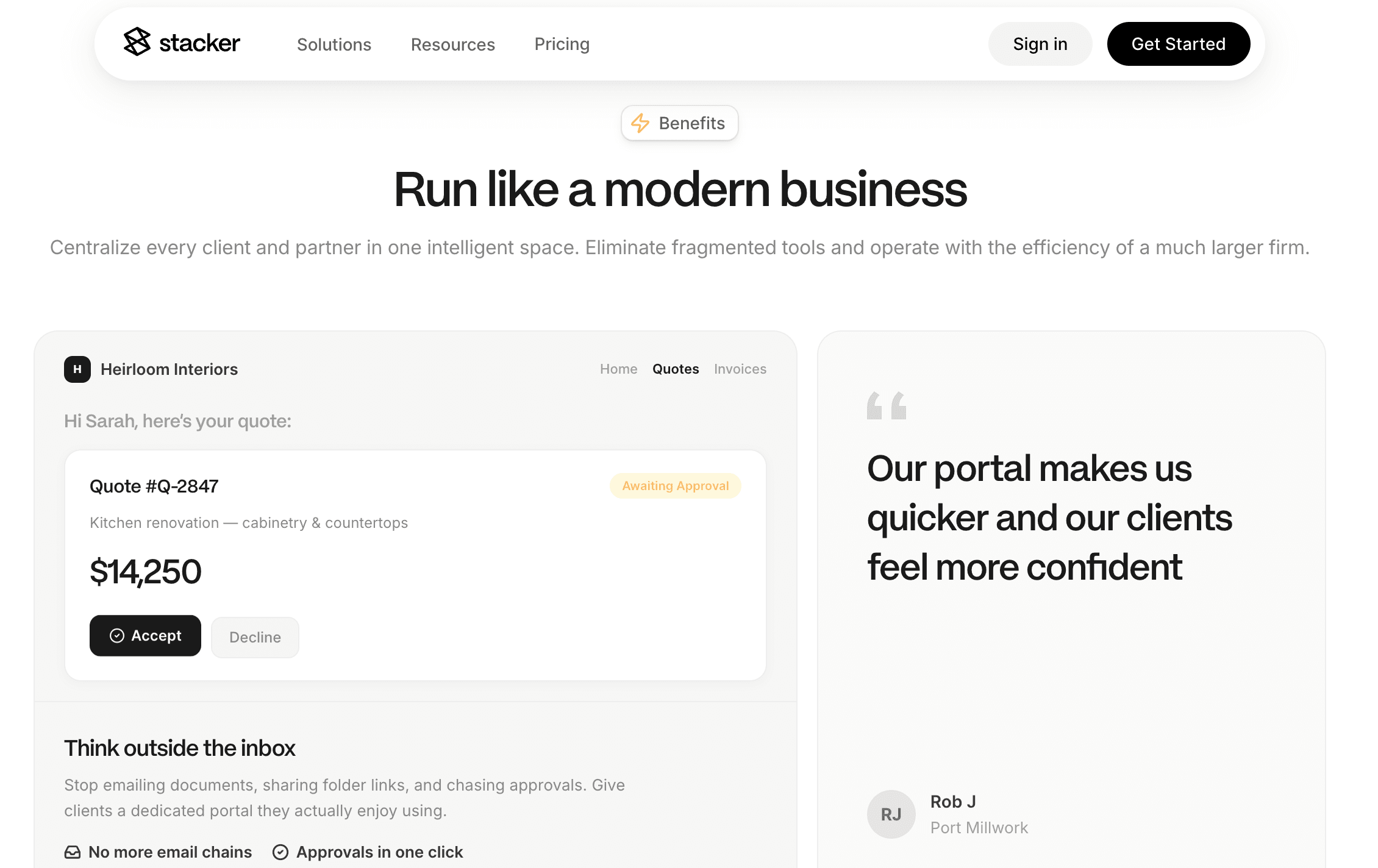
With Stacker, you can build a fully custom customer portal on top of your existing data. Connect your data sources, configure what customers can see and do, and publish your custom portal.
Getting started takes just a few steps:
- Connect your data: Link Stacker to tools like HubSpot, Airtable, Google Sheets, or a SQL database. Your existing records become the foundation of the portal.
- Control access: Set role-based access controls so each customer only sees their own tickets, orders, or documents.
- Customize the experience: Build views, forms, and dashboards tailored to your workflow, no developer required.
- Publish and share: Give customers a branded login page accessible from any browser.
Unlike HubSpot's customer portal, which is locked to Service Hub and limited in customization, Stacker works across your entire data stack. You get full control over layout, logic, and permissions without being locked into a single vendor's ecosystem.
Final Thoughts on HubSpot Customer Portals and Alternatives
HubSpot's customer portal is ideal for teams that only need ticket visibility and self-service articles. Everything else requires a different approach. If your customers need to view projects, access documents, or interact with custom data, you need a portal that connects directly to your business systems. Stacker lets you build that without code see how it works if you want to explore further.
FAQs
HubSpot customer portal vs Zendesk customer portal?
HubSpot's portal works best if you're already in the Service Hub ecosystem and need basic ticket tracking with knowledge base access, while Zendesk offers stronger multi-brand support and higher ticket volume handling at Professional and Enterprise tiers. Both lock you into support-focused workflows and don't handle custom data or project tracking.
Can I create a customer portal without switching my entire tech stack?
Yes. Platforms like Stacker connect directly to your existing tools (HubSpot, Airtable, Google Sheets, Salesforce) without requiring data migration. Your portal sits on top of the data you already have, so your team keeps working in the same systems while customers get a branded, permissioned interface.
What's the actual cost of HubSpot customer portal setup?
Service Hub Professional runs $90 per seat per month, but HubSpot charges a $1,500 onboarding fee upfront that catches most teams off guard. For a five-person support team, you're looking at $1,950 to get started, then $450 per month after that.
How do you create a customer portal that handles more than support tickets?
Build on a flexible solution where you control the data model and what customers can see. You need role-based permissions, custom views for project status or deliverables, and the ability to display account-specific data beyond ticket queues. Standard support portals from HubSpot, Zendesk, and Zoho weren't designed for workflows outside ticket management.
When should I move beyond a basic ticket portal?
If customers need to view project progress, access shared files, review account details, or track multi-step workflows, a ticket portal won't cut it. The moment your workflow involves custom data views or multiple user types seeing different information, you need a more flexible portal solution.