Building a client portal on Notion feels like the obvious move when you're already running your internal workflow there. Clients get one place to check project status, you stop answering the same questions over email, and the whole thing lives inside a tool you already know. The friction shows up when you try to control what each client sees, automate updates, or scale beyond a handful of accounts. Notion's permission model and database structure can handle it, but only if you plan the setup before you start sharing pages.
TLDR:
- Notion client portals solve scattered communication by centralizing projects, files, and updates in one shared workspace.
- Plan your portal structure before building: most need four databases (projects, deliverables, documents, contacts) connected through relations.
- Notion's permission system was built for internal teams, so controlling what each client sees requires careful manual setup and is prone to accidental exposure.
- Notion portals require ongoing maintenance and become unwieldy past 15 clients without regular audits of permissions, databases, and views.
- Stacker connects to your existing data sources and publishes permissioned portals with role-based access, forms, and automation that Notion can't handle at the data layer.
What Is a Notion Client Portal and Why Build One
A Notion client portal is a shared workspace inside Notion where clients can log in, find project updates, access documents, and track progress without sending you an email every time they want a status check. The concept is simple. The appeal, for the people who build them, is that Notion already holds a lot of their working knowledge, so extending it into a client-facing space feels like a natural next step.
The people who build these are typically freelancers, consultants, agencies, and small ops teams. A consultant tired of forwarding the same update twice. An agency that wants clients checking one place instead of digging through Slack. A solo operator who wants their business to feel more organized than their inbox currently suggests it is.
Pulling everything into one place, under your own brand, solves the communication and collaboration challenges that come from scattered information.
Planning Your Portal Structure Before You Build
Before you open Notion, work out the structure on paper. Portals that hold up over time are almost always planned before they're built.
Work through three steps before opening Notion:
- Map your databases. Most client portals run on some version of four: Projects or active engagements, Deliverables or tasks linked to each project, Shared documents and resources, and Contacts if you serve multiple accounts and need to segment visibility by relationship.
- Figure out how those databases connect. A project links to its deliverables; a contact links to a project. That relational structure is what makes filtered views work later, so each client only sees records relevant to them.
- Trace the client's actual path through the portal. What do they see first? Where do they check a status or find a file? Walking through that sequence catches structural gaps while they are still easy to fix.
Setting Up Master Databases for Your Portal
Create each database as a full-page database instead of inline. Full-page databases are easier to link, filter, and reference from multiple pages across your portal.
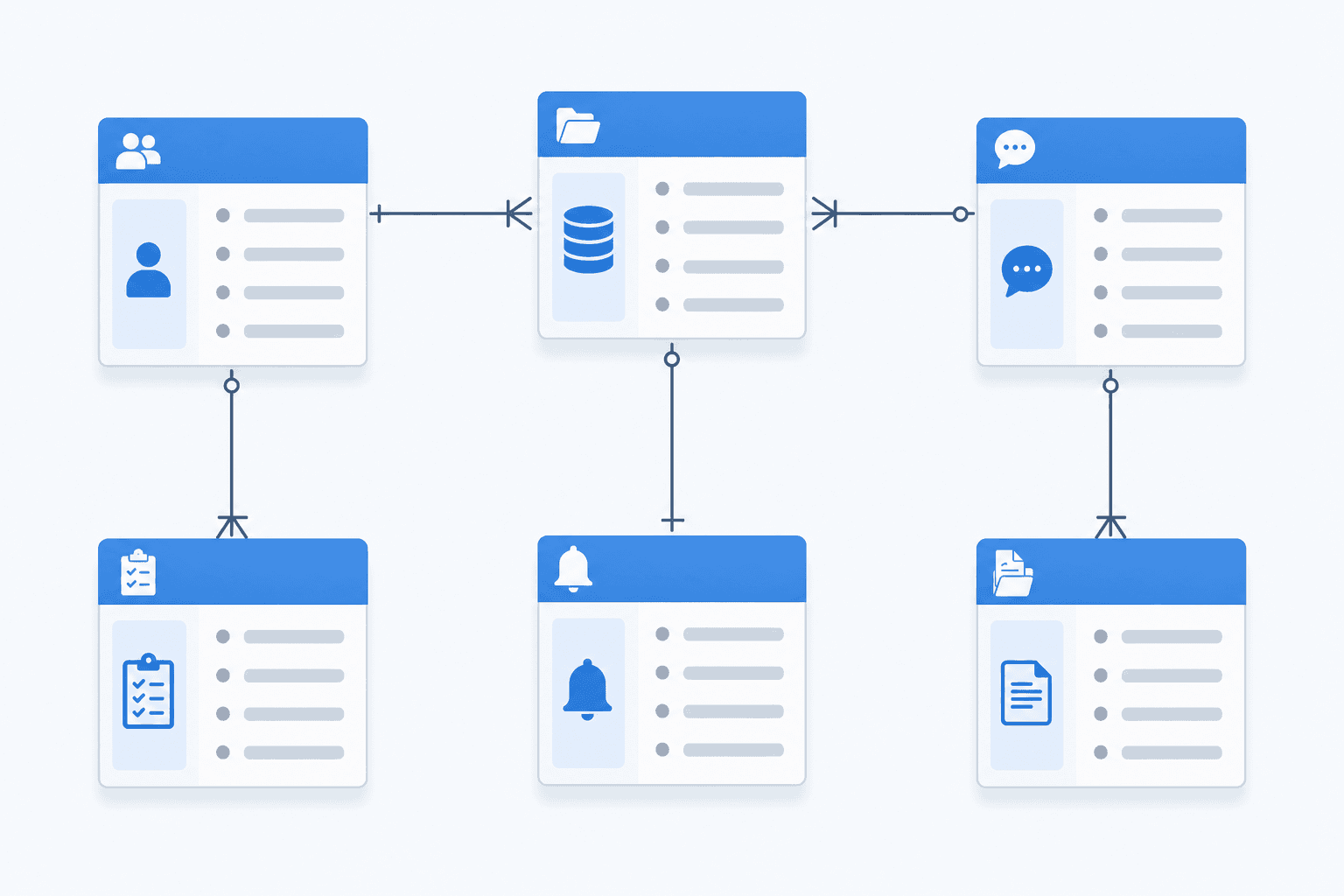
Here are the five databases most portals need:
- Projects: the anchor record for each active engagement
- Contacts: one record per client or account
- Updates: time-stamped entries tied to a project, replacing status emails
- Requests: where clients submit new asks through a Notion form
- Resources: documents and links organized by project
Connect them using Relation properties. A Projects database should relate to both Contacts and Requests. When Notion asks whether to add the corresponding property in the related database, turn it on. That two-way link means opening a contact record shows every linked project, and opening a project surfaces all related requests in one view.
Rollup properties take this further. On a contact record, a rollup can count open projects or pull the latest update date from the linked Updates database, giving you a quick summary without opening each record individually.
Creating the Client-Facing Homepage
The homepage is the first thing your clients see, so it sets the tone for the entire portal experience. Think of it as a personalized dashboard that tells each client exactly where they are and what to do next.
Start by adding a cover image and icon that match your brand or client's identity. Then use a simple heading like "Welcome to Your Portal" followed by a short description of what they'll find inside.
Below that, add clearly labeled page links for each section, such as project updates, shared files, and support requests.
Configuring Notion Permissions for Client Access
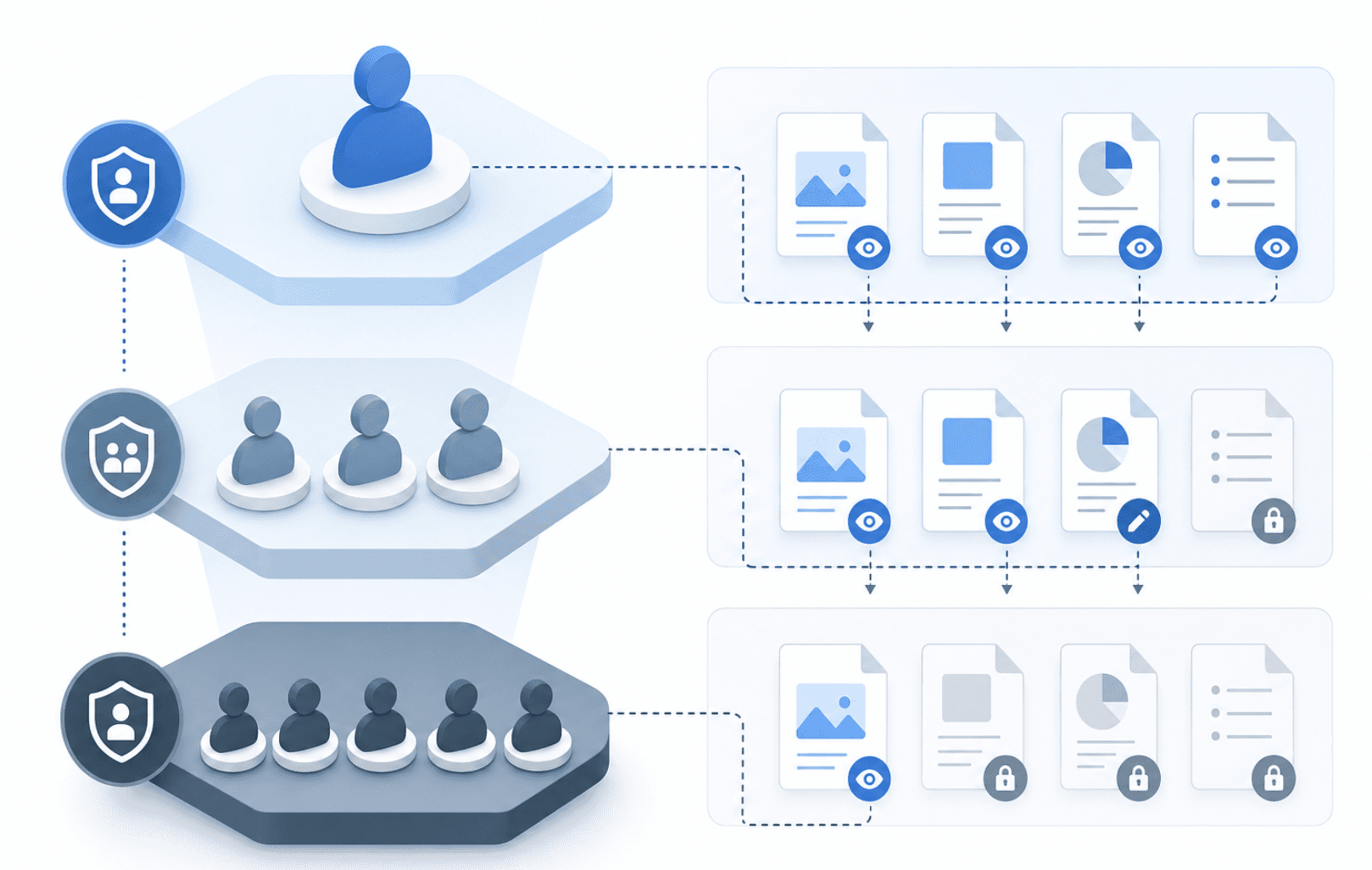
Notion's permission system was built for internal teams, so fitting it around external client access takes some deliberate setup. Before sharing anything with a client, you need to understand the two levers you have: workspace-level guest access and page-level share settings.
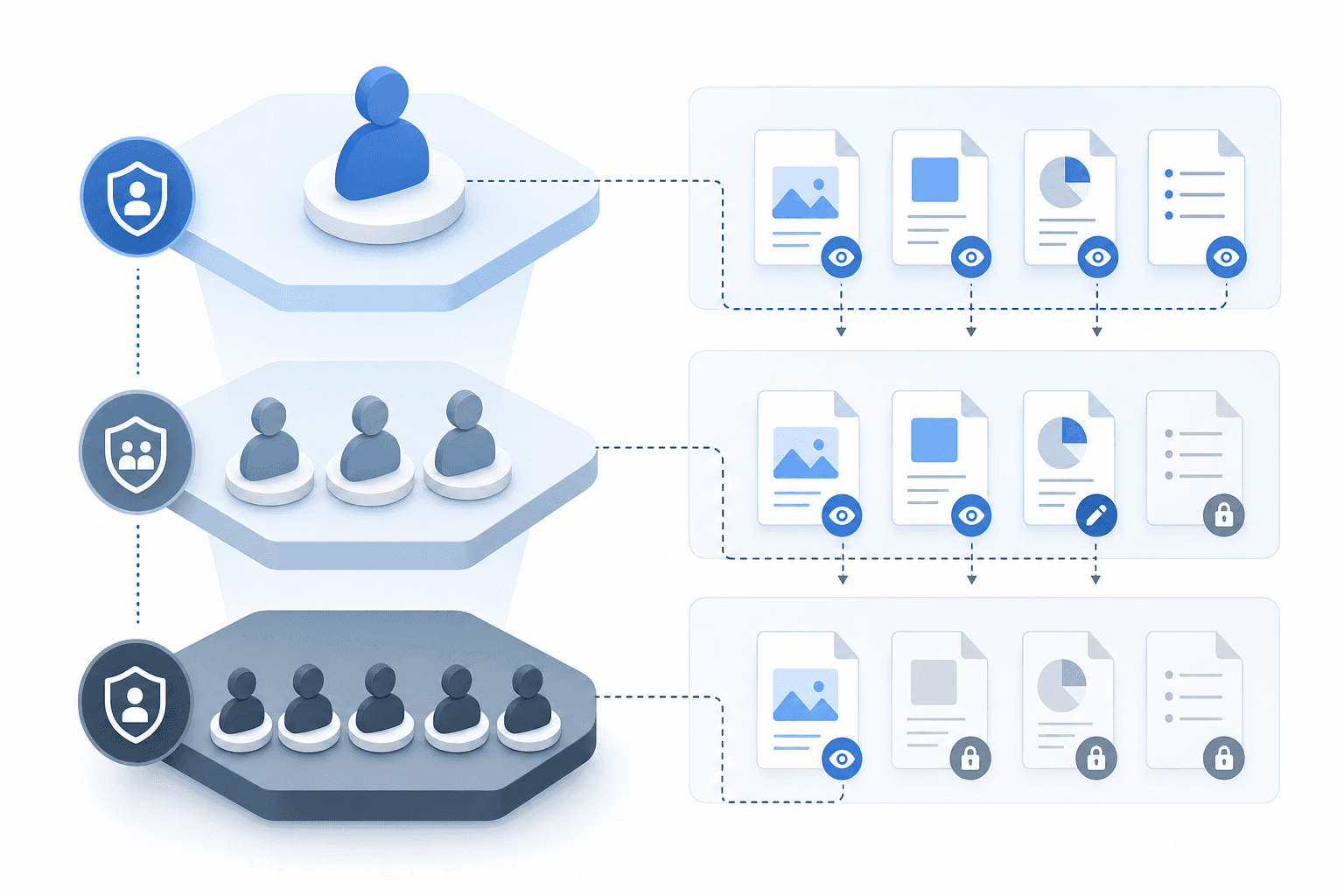
Notion allows you to invite guests by email, giving them access only to the specific pages you share. According to Notion's sharing and permissions docs, guests must have their own Notion account to access any page you share with them. Set each shared page to "Can view" unless the client needs to fill out forms or update a tracker, in which case "Can comment" or "Can edit" applies.
A few ground rules worth setting before you share
- Keep client pages nested under a dedicated parent page so you can manage access in one place without hunting down individual shares later.
- Turn off "Allow editing" on any page that should be read-only, such as proposals, contracts, or status reports.
- Double-check that sub-pages inherit the right permissions. Notion's sharing does not always cascade the way you expect, and a misconfigured sub-page can expose content you intended to keep internal.
- Avoid sharing your entire workspace. Guests added to a top-level page can sometimes see sidebar navigation that reveals other projects.
One real limitation here: Notion has no built-in role system beyond viewer, commenter, and editor. If you need granular access control, such as one client seeing only their own data while another sees theirs, Notion alone cannot enforce that boundary reliably.
Using Database Filters and Views to Personalize Client Data
Notion lets you filter database views so each client only sees their own records. Combined with linked databases and relation properties, this setup keeps information organized without requiring separate workspaces for every client.
To do this, create a filtered view for each client using a property like "Client Name" or a unique ID. Set the filter to match that client's value, then share only that view with them via a public link or guest invite.
Linked Databases and Rollups
Linked databases let you pull the same data into multiple pages with different filters applied. Pair this with rollup properties to surface summary stats like total project hours or outstanding invoices, giving clients a quick snapshot without exposing raw backend data.
Customizing Portal Branding and Design
Notion gives you a few visual levers worth using deliberately. Upload your client's logo as a custom page icon, add a branded cover image at the top of each page, and use callout block colors to create hierarchy and guide attention. Consistent property tag colors across your databases also help the portal feel considered instead of assembled at random.
The main limitation: Notion's design ceiling is low. Fonts are fixed, there's no global color scheme, and every portal ends up looking like Notion regardless of how much you polish individual pages. For internal use or informal client relationships, that's workable. For clients who expect a fully branded experience, cover images and callout blocks alone won't close that gap.
Common Limitations When Using Notion as a Client Portal
Notion works well as a knowledge base and internal wiki, but it runs into specific problems, permission leakage, no per-client data isolation, and no custom domain, when you try to use it as a client-facing portal. A few limitations come up repeatedly for teams who go this route.
For starters, Notion's permission system is all-or-nothing in practice. You can invite guests, but controlling exactly what each client sees across a shared workspace gets complicated fast. There's no native role-based access that lets you show client A their data without risking client B seeing it too.
Notion also has no built-in forms or data collection tied to a structured database workflow. Clients can't submit requests, fill out intake forms, or update their own records without you setting up workarounds through third-party tools.
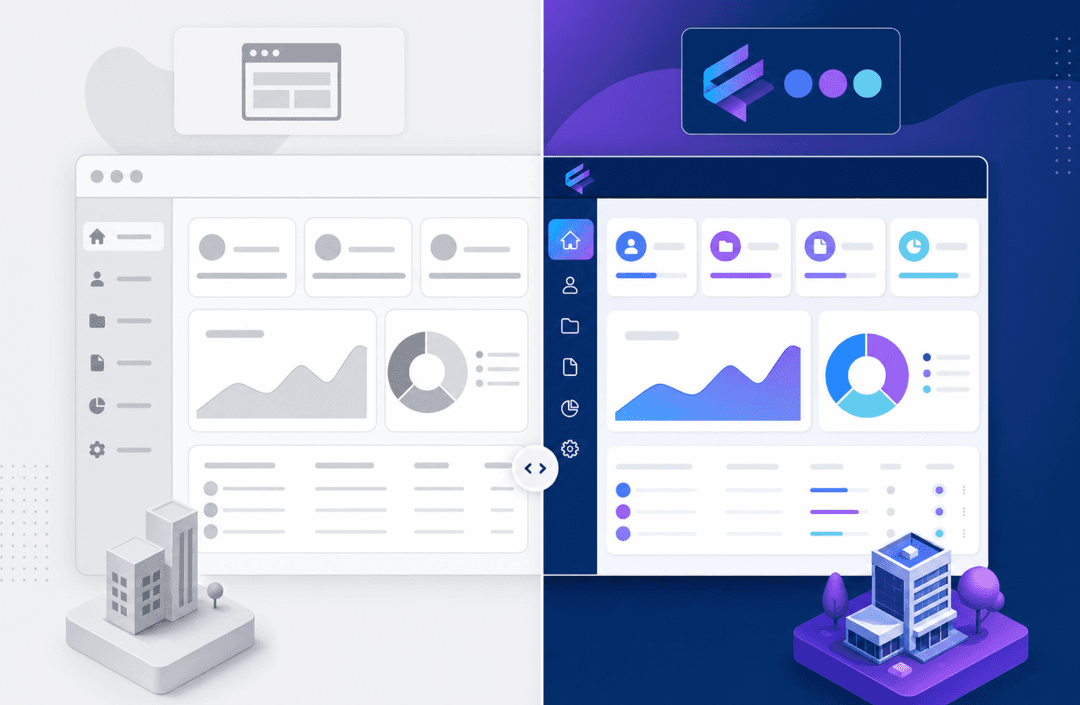
White-labeling is another gap. Every client portal built in Notion carries Notion's branding. You can't use a custom domain on most plans, and the interface always looks like Notion, not your business.
Finally, Notion pages are static by default. There's no live data sync with external sources, no conditional logic, and no way to surface personalized data per client without manually duplicating and maintaining separate pages. For small teams with a handful of clients, that's manageable. Once you scale past that, it becomes a real maintenance burden.
| Feature | Notion Portal | Dedicated Portal Software |
|---|---|---|
| Data isolation per client | Manual filtered views per client, requires ongoing permission management | Built-in role-based access at data layer |
| Custom branding | Limited to cover images and icons; always looks like Notion | Full white-labeling with custom domains |
| Forms and data collection | Requires third-party integrations | Native form builders tied to database workflows |
| Automation and workflows | No native automation; static pages only | Built-in triggers, notifications, and conditional logic |
| External user management | Guest invites managed manually per page | Centralized user roles and permissions |
| Best for | 1-5 clients, informal relationships, internal-first teams | Growing client base, multi-client isolation, branded experience |
Managing and Maintaining Your Notion Portal
Keeping a Notion portal running well takes more ongoing effort than most people expect. Build two recurring habits: a weekly check and a monthly audit. Without them, stale data, broken views, and expired guest access accumulate faster than you'd expect.
Weekly Routine
Every week, spend 15 to 20 minutes on the following:
- Update project statuses and mark completed deliverables so clients always see a current picture when they log in.
- Archive closed records instead of leaving them in active views. Archived records stay searchable but stop cluttering the client-facing pages.
- Revoke guest access for any client engagement that has ended. Notion does not expire guest invites automatically, and a former client who can still view your workspace is a real security gap.
- Check that any new sub-pages created during the week inherit the correct permissions. Notion's sharing does not always cascade to newly added pages.
Monthly Audit
Databases get messier as you add clients. A setup that works fine at five clients can get unwieldy at fifteen if you skip periodic audits. Once a month, review:
- Property values for consistency. Client Name tags, status options, and priority labels drift over time as team members add new values without removing old ones. Clean these up before they break your filtered views.
- Duplicate records. When intake forms or manual data entry create duplicates, filtered views start surfacing the wrong data for clients.
- Views added ad hoc. Every view created outside your original plan is a maintenance burden. Delete views no client is actively using.
- Guest list. Open Settings and Members, review every guest account, and remove anyone who no longer needs access. This takes five minutes and closes the most common accidental-exposure risk.
Client Edit Policy
Set clear boundaries upfront about what clients can edit directly versus what requires going through you. Write that policy as a short callout block inside the portal itself, visible on the homepage. Something like: "You can update your contact details and submit new requests. All other changes go through your project lead." Clients who know the rules rarely test them. Clients who don't know the rules edit things they shouldn't.
Alternatives to Building Portals Directly in Notion
Portalwith and Sotion are two tools worth knowing about if you want to extend Notion into a cleaner portal experience. Both wrap your Notion workspace in a custom domain and a more polished interface, which helps when your main concern is aesthetics or branding over core functionality. If your data and structure are already solid in Notion and the gap is purely presentation, either of these can close it.
When the issues go deeper, such as multi-client data isolation, built-in automation, or reliable external user management, purpose-built portal platforms are a more practical fit. These tools are designed for external-facing use from the ground up, with permissions and data controls that Notion's guest model alone cannot replicate.
When to Consider a Dedicated Portal Builder
- If you need each client to see only their own data, Notion's permission model requires careful manual setup and is prone to accidental exposure. Purpose-built tools handle this at the data layer by default.
- If you want to trigger workflows, send notifications, or update records automatically, you'll need native automation instead of patching in third-party workarounds.
- If your portal needs to grow with your client base, external user management becomes a real operational concern that Notion simply was not designed to handle at scale.
Build Better Portals with Stacker
Notion works well for teams that want to organize information internally, but it has real limits when you need to share structured data with clients or external users. Permissions are hard to scope, the interface exposes more than clients need to see, and there's no way to collect form submissions or trigger actions from a portal view.
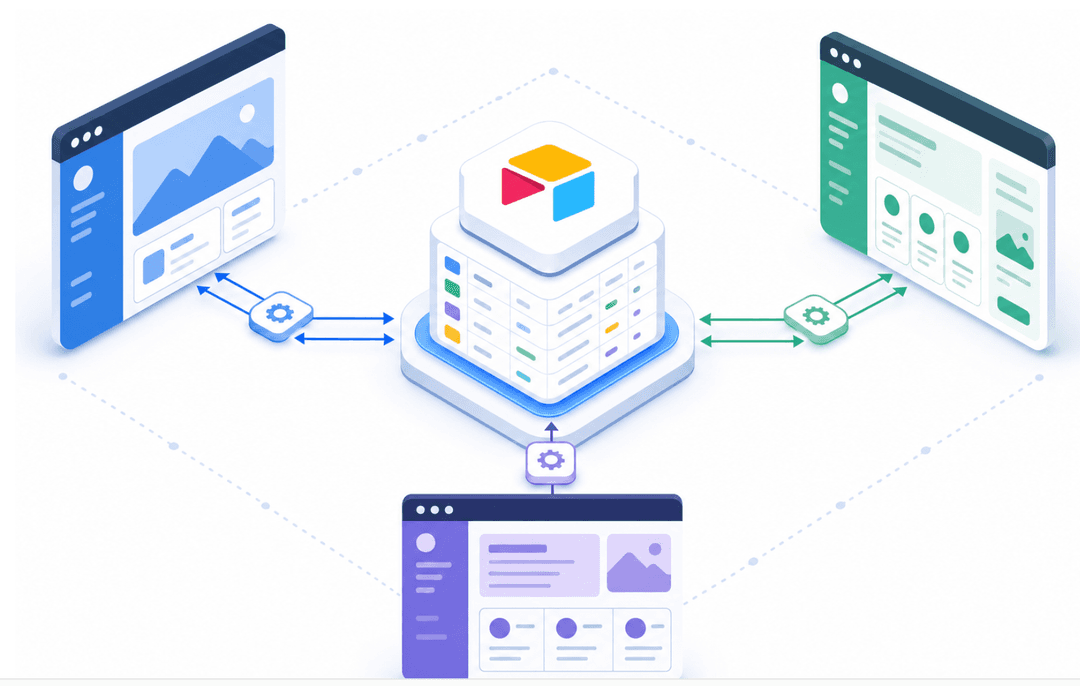
Stacker is an AI-powered app builder designed for exactly that gap. If you already run your data in Notion, Stacker connects to it with two-way sync, your existing setup stays intact and Stacker puts a properly permissioned, branded portal on top of it. Describe what you need, and the AI builds it. No code required, and nothing to host or maintain.
Final Thoughts on Notion Client Portals
You can build a client portal in Notion, and for one or two clients it might even hold up. But the cracks show fast when you need real permission controls, client-specific data views, or anything that updates automatically. Stacker connects to your existing Notion data with two-way sync and adds role-based permissions, forms, and automation that Notion's guest model can't match, without requiring you to rebuild your workflow from scratch. If you're ready to see what a portal built for external users actually looks like, book a demo and we'll walk you through it.
FAQ
Can I build a Notion client portal without using third-party tools?
Yes, you can build a basic client portal using only Notion's native databases, filtered views, and guest permissions. However, you'll face limitations around multi-client data isolation, custom domains, and white-labeling. Notion's permission model requires careful manual setup to prevent clients from seeing each other's data, and the interface will always look like Notion instead of your brand.
Notion portal builder vs dedicated portal software: which should I use?
Notion works well for informal client relationships and small teams managing a handful of clients, but dedicated portal builders handle multi-client data isolation, role-based permissions, and external user management at the data layer by default. If you need clients to see only their own data reliably, or plan to scale past a few clients, purpose-built portal software solves those problems without the manual workarounds.
How do I filter Notion databases so each client only sees their own data?
Create a property like "Client Name" in your database, then build a filtered view for each client that shows only records matching their name. Share that specific view with them via guest invite or public link instead of sharing the full database. Keep in mind this requires maintaining separate views per client and careful permission management to avoid accidental exposure.
What databases do I need to set up a client portal in Notion?
Most client portals run on four core databases: Projects (active engagements), Deliverables (tasks linked to each project), Shared Documents (files and resources), and Contacts (client accounts). Connect these using Relation properties so a project links to its deliverables and contacts, then use Rollup properties to surface summary stats like open task counts or latest update dates.
When should I stop using Notion and switch to a portal builder?
Switch when you need true multi-client data isolation that Notion's guest permissions can't reliably enforce, when you want to automate workflows or trigger notifications natively, or when your client base grows large enough that maintaining separate filtered views per client becomes an operational burden instead of a one-time setup task.