
Most teams hit the same wall with shared spreadsheet links: clients see everything or nothing, there's no authentication, and every status check turns into an email thread. A Google Sheets portal fixes that by layering user logins and row-level permissions on top of your existing data. You'll give clients self-service access to their records without rebuilding your entire data structure first.
TLDR:
- A portal adds authentication and row-level filtering on top of Google Sheets so clients see only their data.
- You need clean sheet structure first: one row per record, consistent naming, no merged cells.
- Three build paths exist: native sharing for simple internal use, dedicated builders for client portals, or custom code.
- Google Sheets performance degrades around 100,000 rows; plan to archive old data or migrate when relational complexity grows.
- Stacker connects to Google Sheets with two-way sync and builds portals using AI from plain-language descriptions.
Why Build a Portal on Google Sheets
Most businesses already run on Google Sheets. The data is there, the team knows where everything lives, and the formulas have been tuned for years. Building a portal on top of it skips the painful step of migrating everything to a new system.
Sheets is also just everywhere. Google Workspace is one of the most widely adopted business tools in the world, making it the closest thing to a universal business data layer. For teams that want to give clients or partners a proper place to log in and view their information, starting from a spreadsheet they already maintain is a reasonable foundation before committing to a full software overhaul.
Understand What a Portal Actually Does
A portal is a login-gated interface where each user sees only what's relevant to them. Clients check project status. Vendors see assigned jobs. Role-based access keeps each user's records isolated from everyone else's.
That's the practical gap a shared spreadsheet link can't fill. A shared link is all-or-nothing, with no concept of who is viewing it. A portal adds real authentication, user-level filtering, and a branded face on top of your existing data, so it looks like your business instead of a raw spreadsheet.
The self-service benefit follows directly from that. Clients log in to check a status or grab a file without emailing your team, at any hour, without anyone on your end doing anything extra.
Prepare Your Google Sheets Data Structure
Before connecting any portal tool, your spreadsheet structure needs to hold up under filtering, relationships, and real user access.
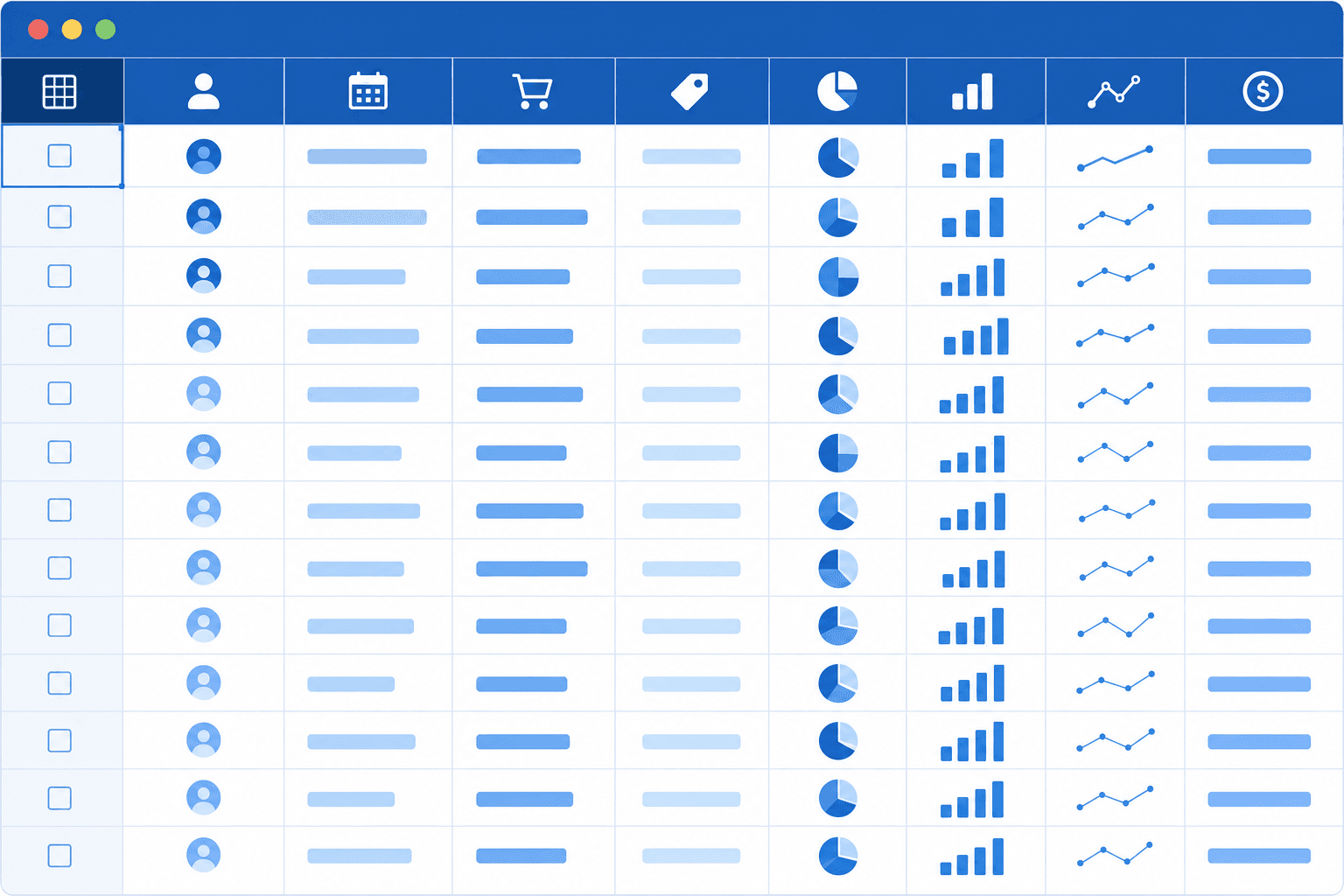
A few things to fix first:
- One row per record, one column per field, no merged cells
- Consistent naming across sheets ("client_id" everywhere, not "clientID" in one tab and "Client ID" in another)
- Link related data with VLOOKUP or a lookup column instead of duplicating fields across sheets
- Remove blank rows, duplicate entries, and stray spaces that portal tools will misread as empty or broken records
Google Sheets has a hard cell limit, and performance starts degrading around 100,000 rows, well before you hit the ceiling, a threshold covered in Google Sheets API usage limits. A lean, tightly structured sheet scales further and causes fewer headaches once real users are filtering and loading data through a portal layer.
Choose Your Portal Building Approach
There are three paths, and each involves a different trade-off between speed, customization, and technical work.
| Approach | Speed to launch | Technical skill | Customization | Maintenance |
|---|---|---|---|---|
| Dedicated portal builder | Hours to days | None | High | Low |
| Native Google Sheets sharing | Minutes | None | Low | Low |
| Custom code or Apps Script | Days to weeks | High | Very high | High |
Which path fits your situation
The right choice depends on what you actually need your portal to do.
- Native Google Sheets sharing works if your use case is simple and internal, and you are comfortable giving collaborators direct access to the spreadsheet itself.
- A dedicated portal builder like Stacker is a good fit when you need to control what different users see, collect data through forms, or give clients a clean view without exposing raw spreadsheet data.
- Custom code suits teams with developer resources and very specific requirements that off-the-shelf tools cannot meet.
Set Up User Roles and Permissions
Google Sheets gives you no native way to control who sees what. Everyone with access to the spreadsheet sees all of it, which creates real problems once clients or external teammates are involved.
To build a true portal, you need row-level and column-level permissions tied to each user's identity. A tool like Stacker reads your Sheet as a data source and layers access rules on top, so a client logging in only sees their own records.
What to set up
- Row-level filtering so each user sees only the rows that belong to them, typically matched by email or a unique ID column in your Sheet.
- Role-based views that give different user types (clients, admins, internal staff) access to different fields or pages entirely.
- Read vs. write permissions per field, so a client can submit a form or update a status without touching data they shouldn't change.
Design the Portal Interface
The interface is what clients actually see, and a portal that looks like a raw spreadsheet pipeline rarely gets used.
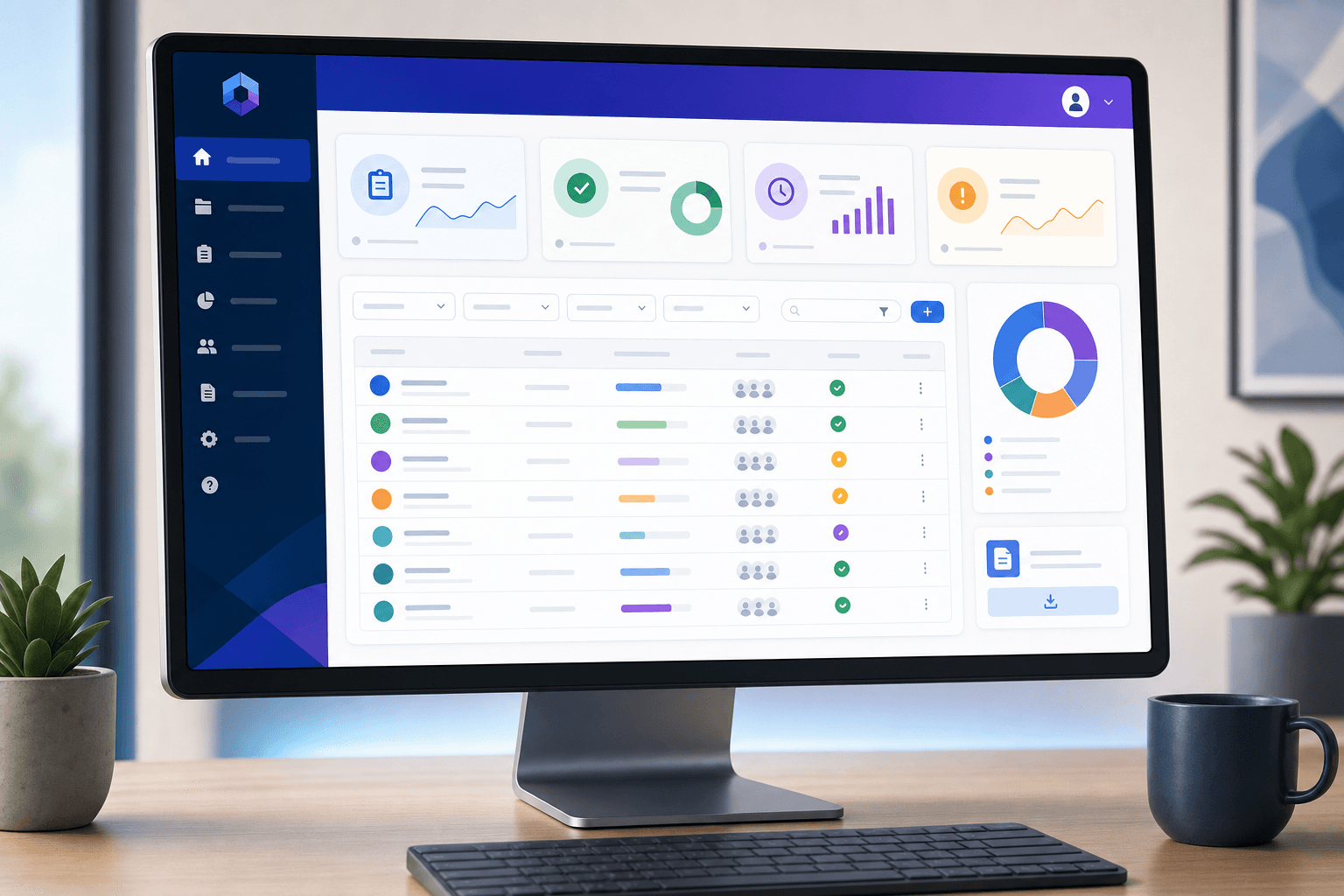
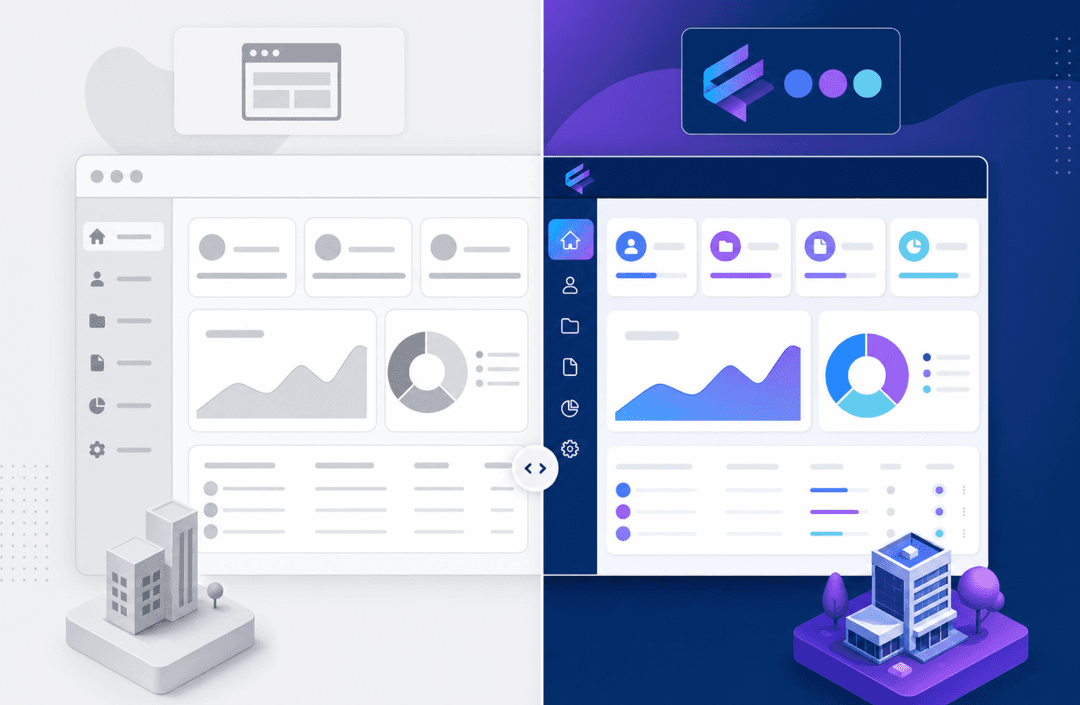
Most dedicated portal builders let you set brand colors, upload a logo, and adjust fonts from a settings panel. Apply those first. A client portal that carries your business's visual identity reads as intentional, and that affects whether clients trust it enough to rely on it over email.
From there, keep navigation simple:
- One page per major task (project status, submitted files, invoices) instead of one long scrollable view
- Filtered table views scoped to the logged-in user, so clients land on their records without any manual searching
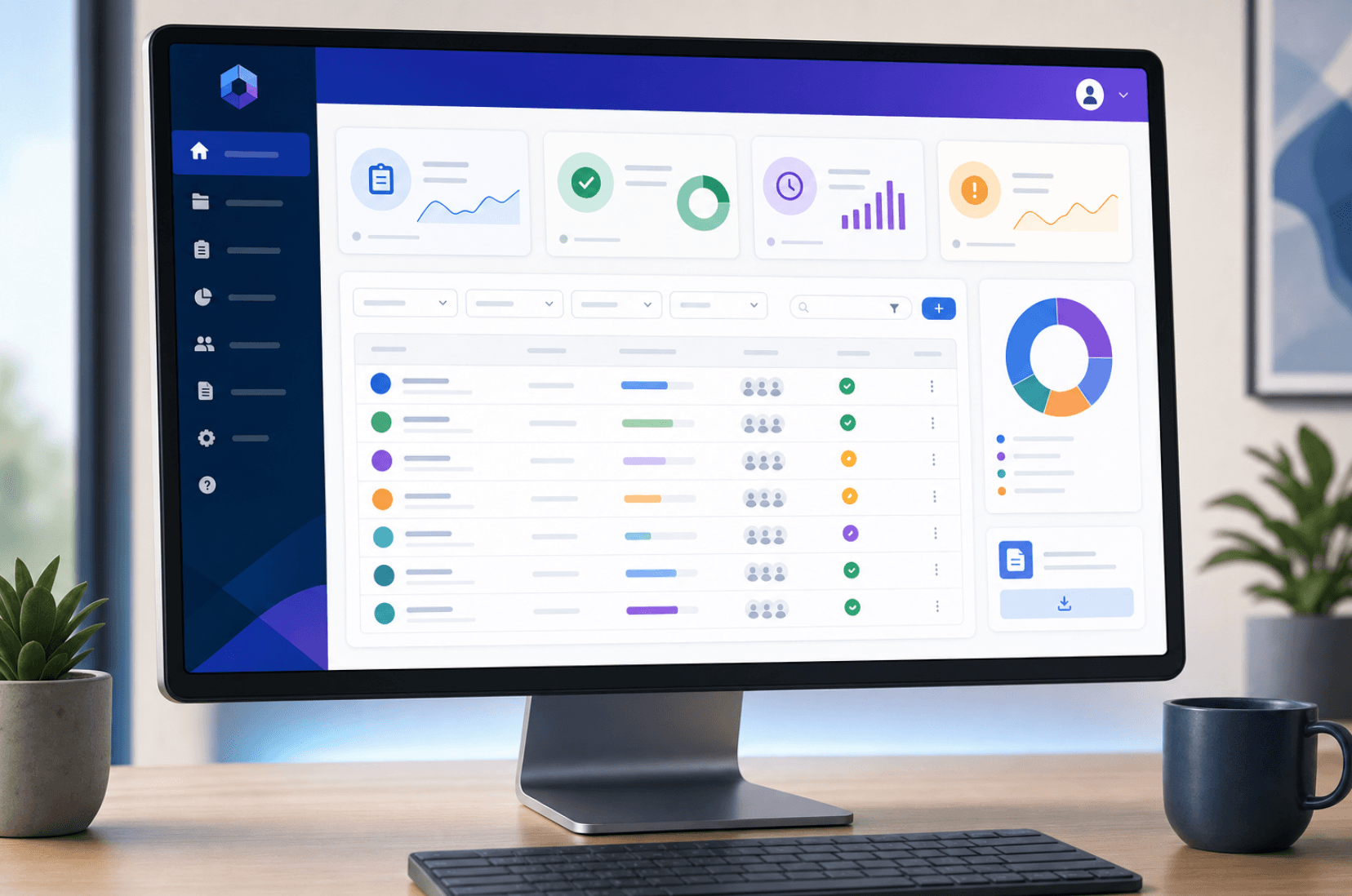
- A dashboard summary at the top, if clients benefit from a quick status snapshot on login
Mobile compatibility matters more than it used to. Many clients will check a portal from a phone while on the move, so test every page at mobile width before inviting anyone in. A layout that looks fine on a wide monitor often breaks into overlapping columns on a smaller screen.
The interface is the only part of your portal that clients ever judge. The data model, the permissions logic, the sync setup: none of that is visible to them. What they see is whether it loads cleanly and shows them exactly what they need.
Keep the design lean. Fewer pages, fewer fields per view, and clear labels go further than a complex layout that requires explanation.
Connect and Sync Your Data
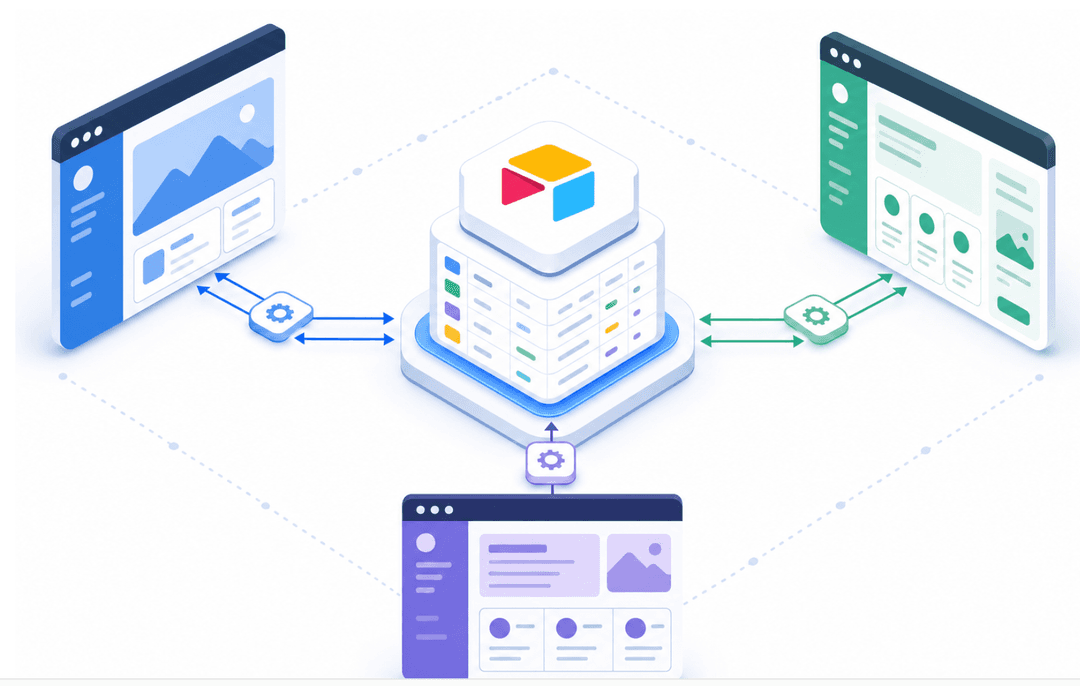
Google Sheets works as a data source, but your portal needs a live connection to it, not a one-time import. When you connect Google Sheets through a tool like Stacker, changes made in the sheet reflect in the portal automatically, and actions taken inside the portal write back to the sheet.
To set this up, you typically authorize access to your Google account, select the specific spreadsheet, and choose which tabs or ranges to pull in as data tables.
A few things to get right before connecting:
- Make sure your sheet has a clear header row with consistent column names, since these become the field names in your portal.
- Remove any merged cells or decorative formatting rows that would confuse the data import.
- Each row should contain a single record, whether that's a client, a project, or an order.
Once connected, your columns map to fields your portal can display, filter, and let users interact with.
Test Portal Access and Data Isolation
Before inviting anyone, log in as a test user for each role you've configured. Check that clients see only their own rows, not records belonging to other clients. Getting row-level isolation right before launch matters because a data leak between clients breaks trust in a way that's hard to recover from, regardless of how fast you fix the underlying setting.
Run through every form and workflow as that test user. Submit a form, update a status, and confirm that write restrictions hold exactly where you set them.
Then test on a phone and a second browser. Permissions that look correct on desktop sometimes behave differently across sessions or screen sizes.
Publish and Share Access
Once your portal is ready, sharing access is straightforward. Most dedicated builders let you publish with a single click. If you want a custom domain, connect it through your DNS settings before sending any invitations, since clients who bookmark a URL expect it to stay stable. Changing the URL after invites go out creates unnecessary confusion.
When sending invitations, include a short note explaining what the portal does and where clients should start. A one-paragraph orientation email goes a long way for clients who have never used a portal before.
Scale and Maintain the Portal
Portals require ongoing attention as they grow. Google Sheets performance starts dropping noticeably around 100,000 rows, well before hitting the technical ceiling. If pages load slowly or syncs lag, that is usually where to look first.
Routine maintenance looks like:
- Auditing user roles quarterly and removing access for clients or vendors who no longer need it
- Archiving old records to a separate sheet instead of deleting them, so the active data stays lean
- Reviewing which fields and pages actually get used, then trimming anything that adds noise
Feature requests will come. Clients will ask for a new view, a different filter, or a form they did not need at launch. Treat those as a backlog and batch small changes instead of applying them one at a time.
When to reconsider your backend
The clearer sign to move on is relational complexity, not row count. When you find yourself maintaining three or four lookup columns just to connect records across tabs, or when permission logic requires workarounds that break under edge cases, a dedicated database layer handles that more reliably than Sheets can. Stacker includes a built-in relational database, so you can move off Google Sheets without rebuilding your portal from scratch.
Build a Portal That Grows With Your Business Using Stacker
If your portal needs to hold up as clients multiply and data grows, the tooling underneath matters. Stacker connects directly to Google Sheets with two-way sync, so your existing spreadsheet stays exactly where it is. From there, AI builds a full portal from a plain-language description, with authentication, hosting, and security included, and nothing requiring separate deployment. Because the AI has years of portal-specific use cases built in, it already understands what good permissions, navigation, and data isolation look like, so you skip the blank-canvas problem that comes with general-purpose builders.
Thousands of teams use Stacker for client and vendor portals, including companies like Samsung, TED, and Adobe. Teams that consolidate a mixed system of custom software and spreadsheets into a single Stacker app report meaningful time savings and less context-switching. That kind of consolidation is the point: one place for your data, your permissions, and your client experience, all connected to the spreadsheet you already maintain.
Final Thoughts on Creating a Google Sheets Client Portal
A portal that connects to Google Sheets works when you need clients to see their own records without touching anyone else's data. You keep the spreadsheet structure that already runs your business and add authentication, filtering, and a branded interface on top. Book a demo to walk through how Stacker pulls from your existing Sheet and builds the portal layer, or start cleaning up your data structure while you figure out which approach fits your team.
FAQ
Can I build a portal on Google Sheets without learning to code?
Yes. Dedicated portal builders like Stacker connect to your existing Google Sheet and build the portal through plain-language descriptions, requiring no coding or technical background. You describe what you need, the AI builds it, and your spreadsheet stays exactly where it is.
Google Sheets portal vs custom code: which approach is faster?
A dedicated portal builder launches in hours to days with no technical skill required, while custom code using Apps Script or web frameworks takes days to weeks and requires developer resources. Most businesses choose a builder unless they have very specific requirements that off-the-shelf tools cannot meet.
How do I control what different clients see in a Google Sheets client portal?
Google Sheets itself has no native row-level or column-level permissions. To build a true portal where each client sees only their own data, you need a tool that layers access controls on top of your sheet, filtering rows based on the logged-in user's identity and limiting fields by role.
What's the row limit before a Google Sheets portal starts slowing down?
Google Sheets has a 10 million cell limit, but performance typically degrades around 100,000 rows. If pages load slowly or syncs lag, the active row count is usually the cause. Archive old records to a separate sheet to keep the portal running smoothly.
When should I migrate off Google Sheets as my portal backend?
The clearer signal is relational complexity, not row count. If you're maintaining three or four lookup columns just to connect records across tabs, or permission logic requires workarounds that break under edge cases, a dedicated database layer handles that more reliably than Sheets can.