Stacker

Search Documentation

Search for pages and topics in the documentation

5 min read

Starting threads

A thread is one conversation with an agent — your messages, its replies, tool calls, and any approvals along the way. You can talk to an agent from inside the app or from a connected channel like Slack or email.

Ways to talk to an agent

Every path below opens or continues a thread — one ongoing conversation. Pick whichever entry point fits how you're working.

In the app
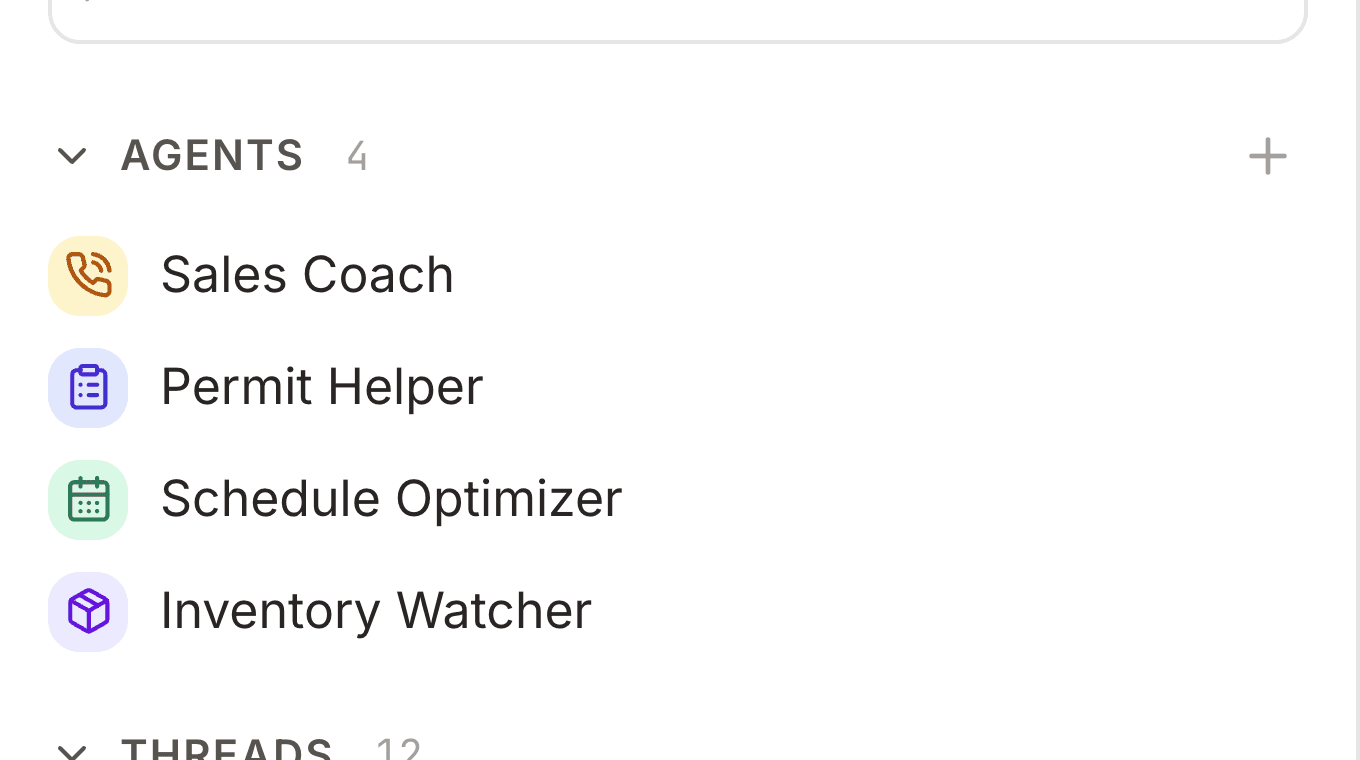
Agents sidebar with a New thread link at the top, a list of agents, and recent threads below
The Agents pane — your home base for starting conversations and jumping back into recent threads.

New thread

Click New thread at the top of the Agents pane. A composer opens with an agent already selected — your last-used agent, or the first in the list if you haven't picked one yet. Use the agent dropdown to switch before you send. The conversation stays in the side pane so you don't leave your current page.

From an agent in the list

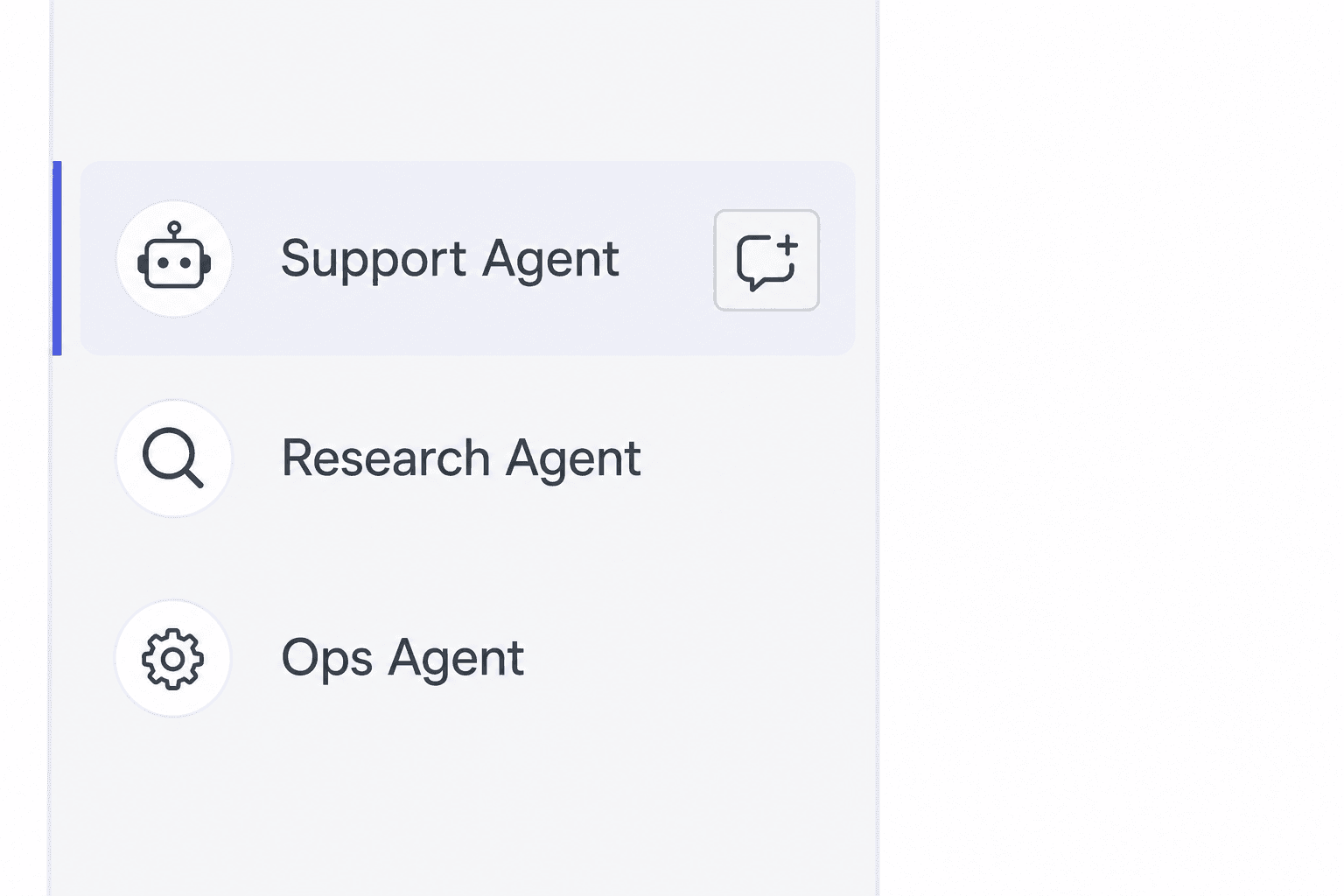
Hover an agent and click the icon on the right. Same composer, but that agent is already chosen — the quickest path when you know who should handle the task.

From the agent's settings

Open an agent from the list to reach its settings screen. On the Overview tab, use the "What's the task?" composer at the top to start a thread with that agent — no trip back to the sidebar.
Agents sidebar with Support Agent row hovered and a new-thread plus icon visible on the right
Hover an agent row, then click the chat-plus icon — that agent is pre-selected in the composer.

From Slack, email, and other channels

Connect channels on an agent's Channels tab and people can reach it from outside the app — Slack, Telegram, WhatsApp, Gmail, a Stacker-hosted email address, and inbound webhooks. Each inbound message opens or continues its own thread automatically; you don't need to start anything manually. Record threads and in-app voice are configured there too. See Channels for setup details.

The Thread toggle on the Channels tab only controls whether the agent appears in the in-app "Pick an agent…" picker — it does not affect the sidebar shortcuts above or external channels.

Example things to ask

You don't need special syntax — plain language is enough. Good prompts name the outcome and any constraints:

Prompt ideas

Look something up

"Find the three most recent support tickets for acme@example.com and summarize what's still open."

Update a record

"Mark order ORD-1042 as shipped and add a note that the customer was emailed the tracking link."

Research and act

"Check our Deals table for anything closing this week with no activity in 5 days — draft a short follow-up for each owner."

Run on a schedule (via Channels)

After you add a Schedule on the agent's Channels tab: "Every weekday at 9am, review stale leads and post a summary here."

Create an automation

With Modify workflows enabled: "When a deal moves to Closed Won, run an automation that emails the deal owner and logs the win in Activities." See Automations for more examples.

When the agent needs a tool you haven't enabled

If the agent has Request more tools enabled, it can ask mid-conversation instead of giving up. You'll see an inline card in the thread — only in live chat threads where someone is watching to click Approve.

What you might see

Write records

The agent tried to update a row but only has read access. The card says something like: "I need to update the contact's status field as you asked, but I currently only have read access — could you enable Write records?" You can choose Approve once, Approve for this conversation, Approve forever, or Deny.

Send email

"I can draft the reply but need Send email enabled to deliver it from this agent's address."

Run automations

"You asked me to trigger the nightly cleanup workflow — approve Run automations so I can call it by slug."

Connected integration

The agent may request `integration:{slug}` — e.g. access to a Google Sheets or Stripe connection your workspace already has but this agent hasn't been granted yet.

Grant keys like records:write are internal — the card shows the human-readable name (Write records, Send email, etc.). See Tools.

When the agent needs a data connection

Agents with Manage data connections can list syncs, trigger resyncs, and ask you to connect sources. When setup is required, the thread shows a Connect, Reconnect, or Open in Setup button — you stay in the conversation while the connection flow runs.

Example agent messages

Connect a new source

"I don't see an Airtable sync for this app yet. Click Connect below to add one — then ask me again and I'll pull the records you need."

Reconnect after auth expires

"Your Stripe connection needs re-authentication before I can read live subscription data. Use Reconnect to sign in again."

Configure mappings

"The Postgres sync is connected but not filtering to the customers table you mentioned — open Setup to adjust which tables sync."

Data connections sync external sources into your app's tables — different from integrations that let agents act in third-party apps. See that page for the full distinction.