User login flow
These options apply to portal users— people who sign in to your published customer portal, not to the internal builder or admin app. Control how they authenticate: passwordless login via magic links or one-time passcodes, optional self-service registration, and enterprise single sign-on.
Where to find the login link
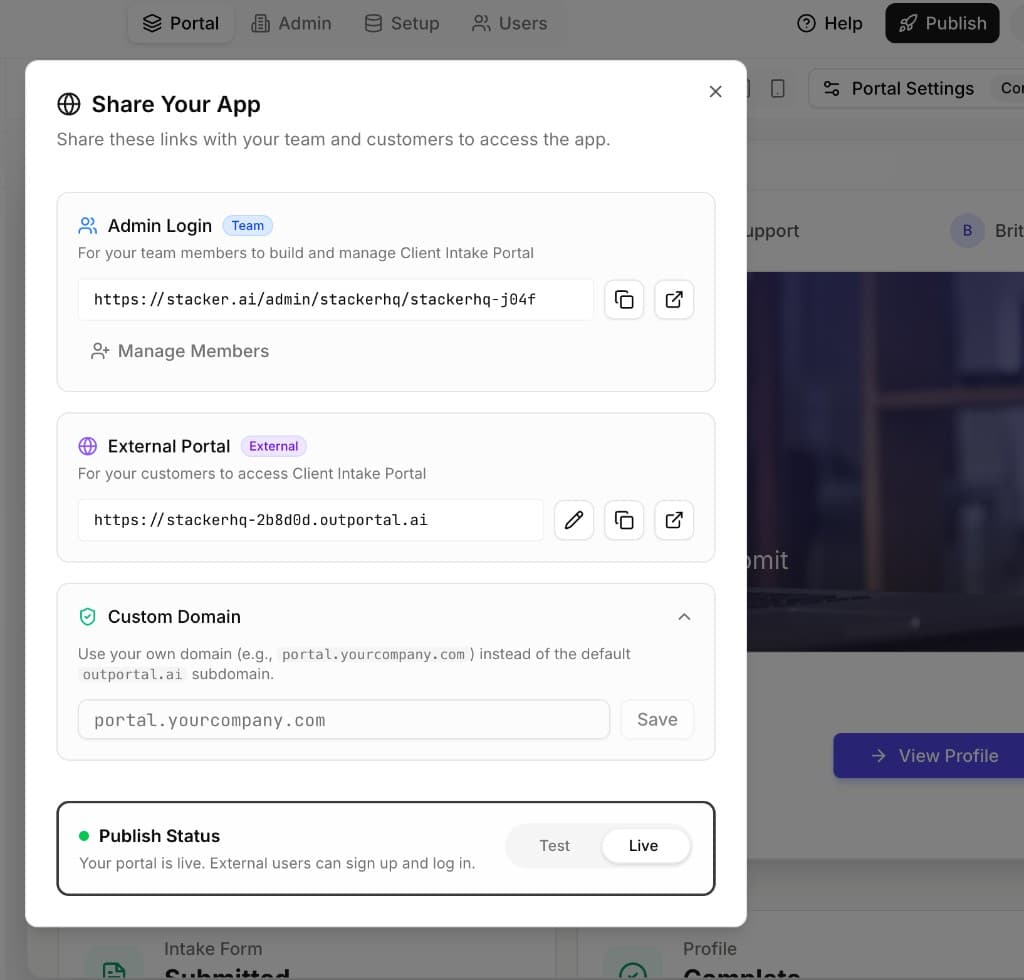
The customer portal address appears in two places: on the Users tab (at the top as Login URL with copy), and in Publish → Share Your App as External Portal — next to the team Admin Login link, custom domain, and Live/Test status.
Default portal domain: Customer portals are moving to stacker.ai as the default host. Until that cutover is complete, published portals still use an outportal.ai subdomain. This page and the product will reflect the switch when it happens.
On Stacker's default hosting, the portal URL looks like a subdomain of that domain, for example:
Replace your-portal-name with your portal's public slug. The exact value matches Login URL in Portal Settings → Users and External Portal in Share Your App.
If you connect a verified custom domain, the Login URL shows that domain instead. Custom domains, logos, colors, and related setup are covered in Branding & Themes.
Before you begin
Magic Links, OTP, and Open Sign Up all require a users table to be configured. This is the table in your app that contains your portal users — for example, a "Customers" or "Clients" table. Set this up in Portal Settings > Permissions > Users Table.
Login Methods
Magic Links
DefaultUsers enter their email address and receive a secure login link — no password needed. One click and they're in.
How it works
One-Time Passcode (OTP)
Users receive a 4-digit code by email instead of a clickable link. Useful when users open their email on a different device from where they're logging in.
How it works
How to enable: Ask the AI agent to switch to OTP login—for example, "change login to use a code" or "switch to OTP login". The agent will update your portal's login page automatically.
Email templates
Change the emails users receive—including OTP and magic link messages—in Setup → Email Templates. A separate agent there can help you refine the copy, or you can edit the templates manually.
Open Sign Up
Troubleshooting
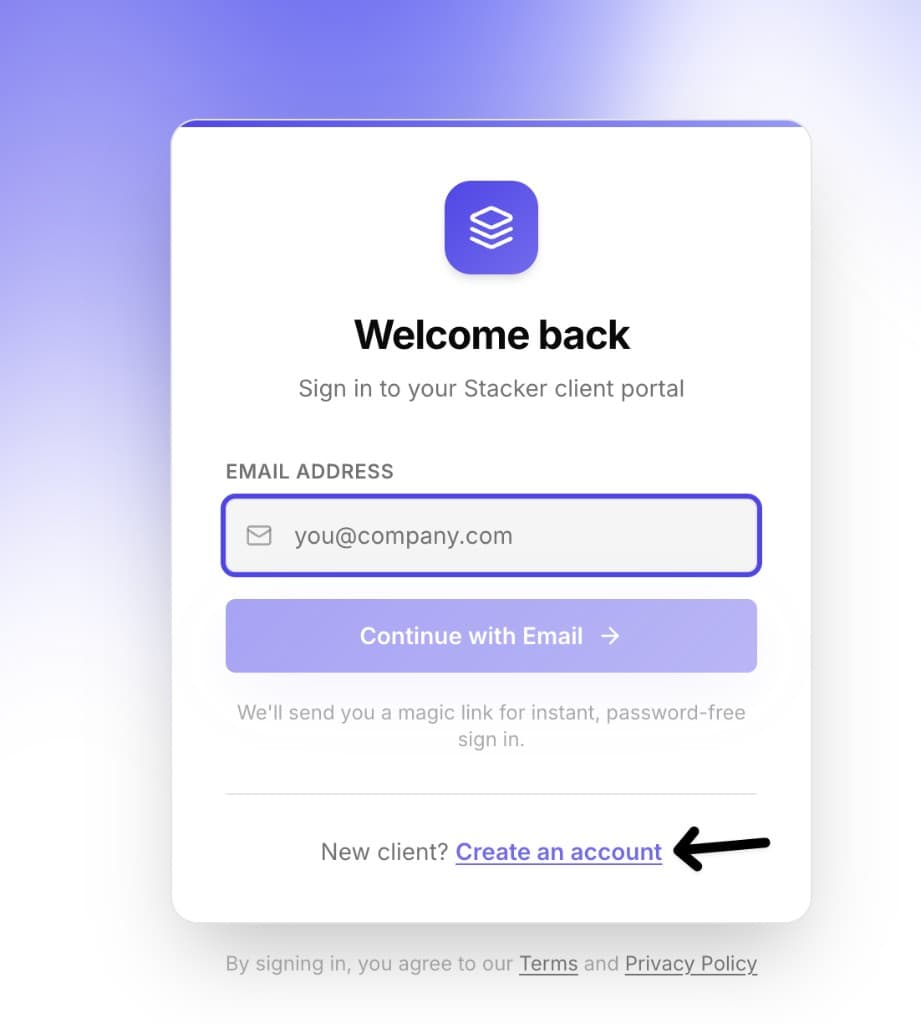
If someone can't register, check that they're using Create an account from the portal login screen (under the email sign-in)—not entering their email to sign in—they'll do that the next time they access the app.
Self-Service Registration
By default, only users who already have a record in your users table can sign in. Enabling open sign up lets new visitors register themselves.
Registration uses the same host as your live portal, with /register on the path. On Stacker's default hosting that looks like this — replace your-portal-name with your portal subdomain from Login URL in Portal Settings → Users or External Portal (Share Your App):
Portal domain: Customer portals are moving to stacker.ai as the default host. Until that change is live for everyone, default hosting still uses outportal.ai — for open sign-up, use the same host as your published portal, for example https://your-portal-name.outportal.ai/register. The subdomain matches Login URL and External Portal in the product.
With a custom domain, use your domain the same way—for example https://portal.yourcompany.com/register.
How it works
How to enable
- Portal Settings: Open Permissions and toggle Open registration on.
- AI agent: Ask "enable sign up" or "allow registration".
Custom registration pages
Shape the /register experience with the AI agent
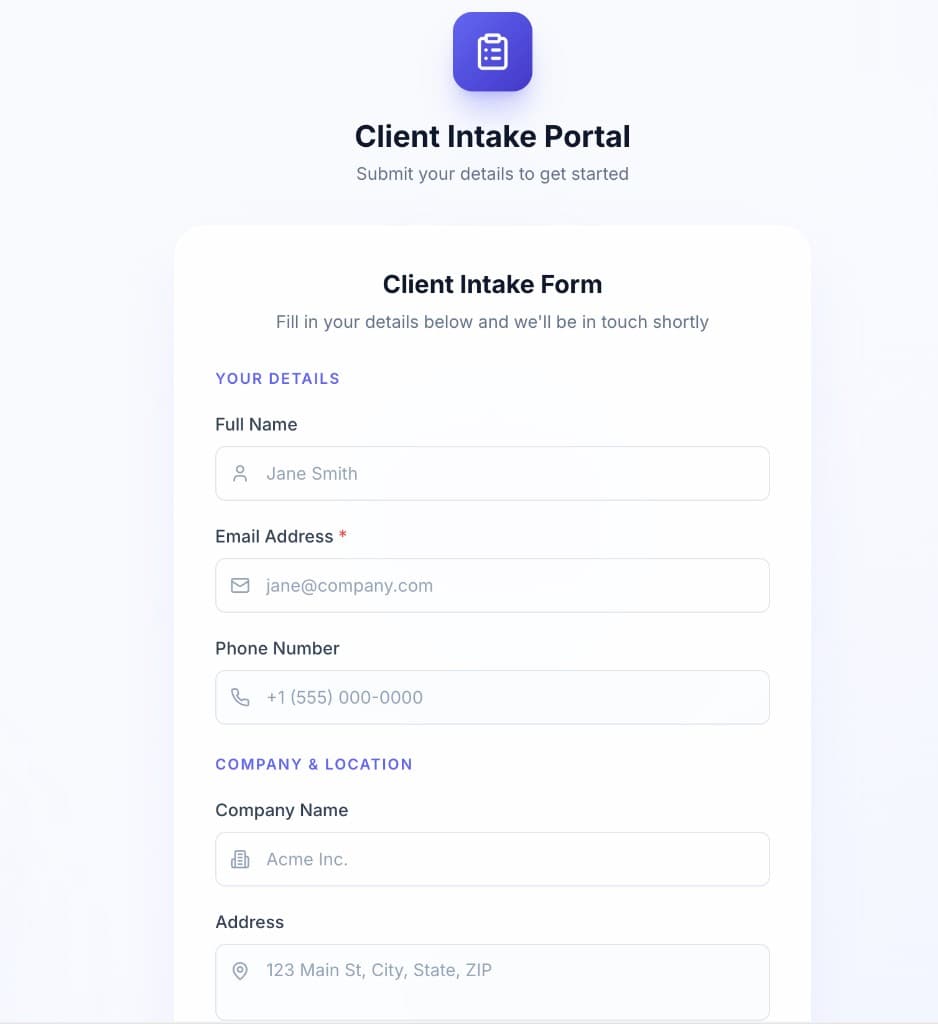
Describe what you want—layout, steps, and which fields to collect—and the agent can build it for you. Everything maps to your users table, so new sign-ups land in the right place.
- Simple: email + name (or minimal fields)
- Rich intake: company, phone, address, or other onboarding fields
- Guided: multi-step flow with progress if you need more structure
Single Sign-On (SSO)
Enterprise SSO
Business PlanLet portal users authenticate through their organization's identity provider — such as Microsoft Entra ID, Google Workspace, or Okta — instead of entering an email and receiving a code or link.
Preview the login screen
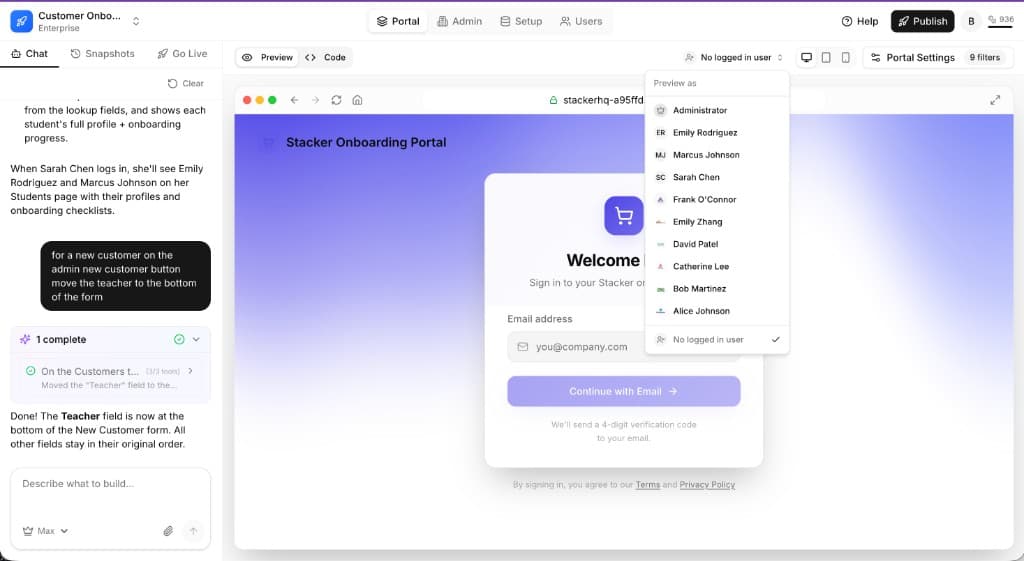
In portal preview, open the Preview as menu and choose No logged in user. That shows exactly what people see before they sign in. You can ask the AI agent to adjust copy, layout, branding, or other details on that screen.