User Types
Workspace members have a role that controls access to the builder, admin dashboard, and workspace settings. That is separate from people who only sign in to your customer portal as portal users.
How Roles Work
Each person in your workspace is either a Builder, a Member, or a Portal User. Builders and Members work inside your app's admin experience; Portal Users only use the published portal (login, pages, and data you expose to them).
Portal data access for portal users is configured per table (see Permission Overview), not by picking a workspace role.
Builders and Members
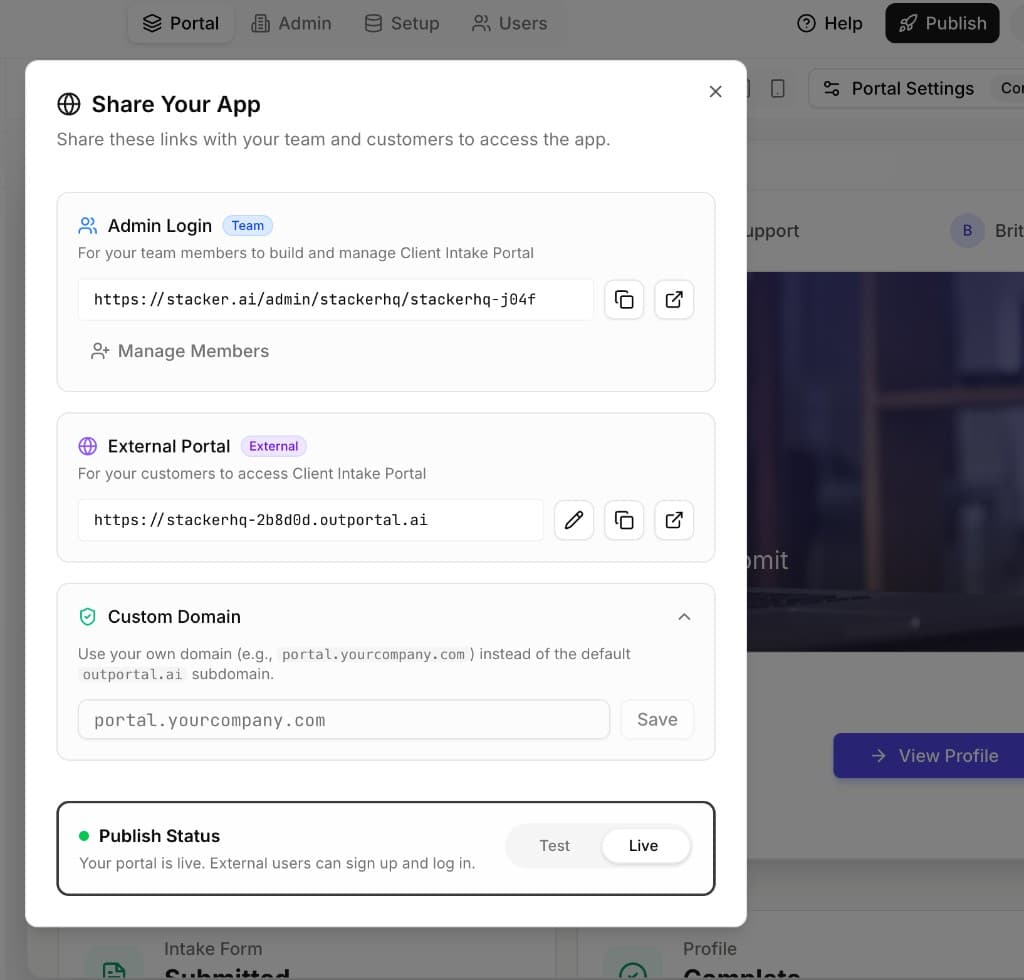
Most of this lives in Publish → Share Your App: the team Admin Login URL (Builders and Members), the customer External Portal URL, optional Custom Domain, and whether the app is on Test or Live. The Users tab also shows the portal Login URL when you need it in context with portal analytics.
Builder
Design and configure the app
Builders can use the AI agent and reach everything needed to shape the product: portal configuration, admin tools, setup, and broader workspace settings. This is the role for people who should own structure, permissions, and how the portal behaves. Anyone new is sent an email invite as Builder from Manage members; they must accept the invite (and create an Stacker account if they do not have one) before they can sign in. After that, they use normal Stacker login with the builder URL.
Where Builders sign in & URL shape
The first time, they follow the invitation email and accept access. Later sign-ins use the same Stacker workspace login as the rest of your team (not the customer portal). After signing in, they open the app in builder mode.
The path usually looks like this on your app host (replace placeholders with your slugs):
That is different from the member admin URL (/admin/…/…) and from the portal subdomain customers use.
Member
View the admin dashboard
Members can open and view the admin dashboard so they can see internal data and screens you expose there, but they do not get builder tools, the AI agent, or access to change portal, workspace, or setup settings. They are added the same way as Builders: an email invite with the Member role, which they must accept before they can sign in. Afterward they use Stacker login with the admin dashboard URL.
Optionally, you can apply roles & permissions to Members: give your internal app a users table (in the app's Users settings) and each Member is matched to the record with their email. They then see only the data their role and permissions allow — exactly like portal users. Without a users table, Members keep full read access as before. Builders and Owners are never restricted.
Where Members sign in & URL shape
They accept their invite by email first; after that they sign in through Stacker with their workspace account. They should open the app's admin dashboard only—the same internal team URL shown in Publish (not the builder path and not the customer portal).
Path pattern:
Copy the full link from Publish if you are unsure—your workspace and app slugs fill in automatically.
How to add a Member (admin side)
Only people with Builder or Owner access on the app can invite teammates.
- Open the app switcher (your app name in the header) and choose Manage members. You can also open Publish and click Manage Members next to your internal team URL.
- In App Members, under Invite a team member, enter their email address.
- Set the role dropdown to Member (not Builder)—that grants admin dashboard access only.
- Send the invite. If they already have an account, they are added right away; otherwise they receive an email to join.
Portal users
Portal users are not workspace teammates. They only sign in to your published customer portal using the external URL—not the builder or internal admin links above.
Portal User
Customer-facing portal only
Portal users sign in to your published portal, not the builder. What they see and do follows your portal and table permissions (for example, only rows linked to their user record). They do not access workspace admin or configuration.
Where Portal Users sign in & URL shape
Portal users only use the customer portal. Send them the Login URL from the Users tab in the builder (see User login flow).
On default hosting the link looks like:
A verified custom domain replaces that hostname; branding and domains are covered in Branding & Themes.