
Plan, Design, Build mode
After your portal's initial build, the AI builder thread includes a mode control next to the model picker. Modes change what the agent is allowed to do so you can explore and agree on a plan, ship fast visual passes, or use the full builder when you need structural changes.
How to change between modes
The mode switcher appears in the builder thread when you're working with the agent in the normal post-build experience. It is hidden during onboarding and phased initial build, where the product drives the flow for you.
Your choice is remembered on this browser (local storage) and is sent with each message so every reply runs with the right toolset.
The three modes
Build
Default mode — full capabilities
The agent has its full toolset: it can create and edit portal pages, adjust schema and data when needed, run connectors and admin tasks, and implement what you describe. Use Build when you're ready for the agent to make real changes to the app.
Plan
Read-only exploration and markdown plans
Plan mode is read-only for the portal, schema, records, and settings. The agent can still inspect your app (schema, portal files, previews, reference docs) and use plan tools to create and update markdown plan documents, list them, change their status (for example when you approve a direction), and exit back when you're done planning.
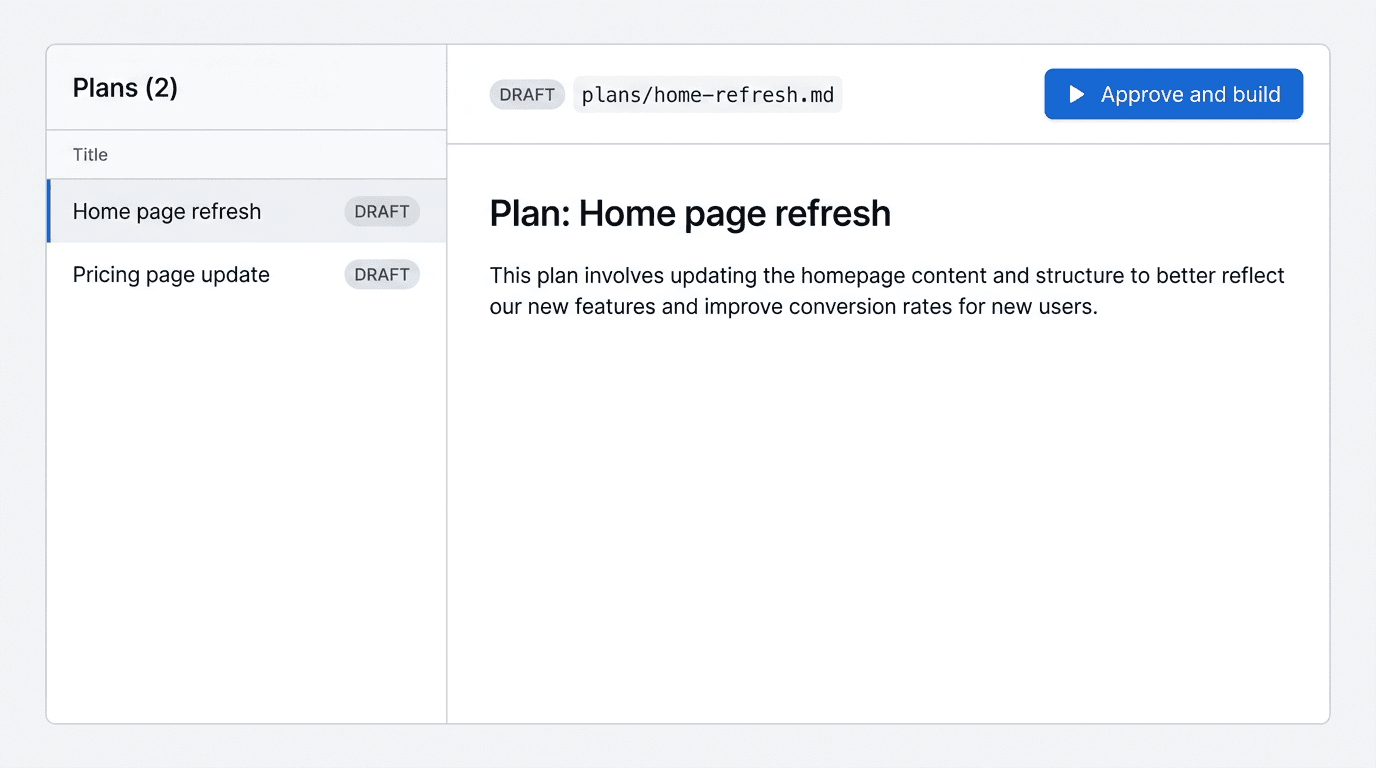
To read those plans in the builder UI, open your portal's tab in the navigation bar and choose Plans above the preview panel (see View the Plans).
Use Plan when you want to think together before anything mutates: scope, page order, risky refactors, or copy for a redesign. When you switch to Build, the same plan tools remain available so the agent can mark work complete as it implements your plan.
Design
Fast visual and cosmetic edits to existing pages
Design mode is for look-and-feel on pages that already exist: broad layout and styling passes via full-page regeneration, plus updates to the global navigation and page wrapper theme. It does not expose tools that change schema, records, settings, or arbitrary portal file create/delete — structural and data work stay in Build.
The agent can still read plans, so you can approve a cosmetic direction in Plan, switch to Design, and execute it without pulling in the full builder toolset.
How to work across modes
A simple rhythm many teams use
Plan first when the change is large or ambiguous
Use Design for fast visual iterations
Switch to Build for anything structural
View the Plans
When the agent writes plans, they appear in the builder next to the live portal. With your portal's tab selected in the navigation bar, use the tabs at the top of the portal preview panel — Preview, Code, and Plans (compass icon). Choose Plans to open the plans list and reader—you stay on the same screen as the preview, so you can read markdown plans, change status (draft, approved, completed), and jump back to Preview anytime. On the Agents tab, the same preview panel lives on the right side of the screen.
If the agent shares a plan link in the thread, following it can switch this pane to Plans and open that document for you automatically.
Related docs
For prompting patterns and examples that apply in every mode, see Using the AI Builder. For workspace-wide branding that complements Design mode, see Branding & themes.